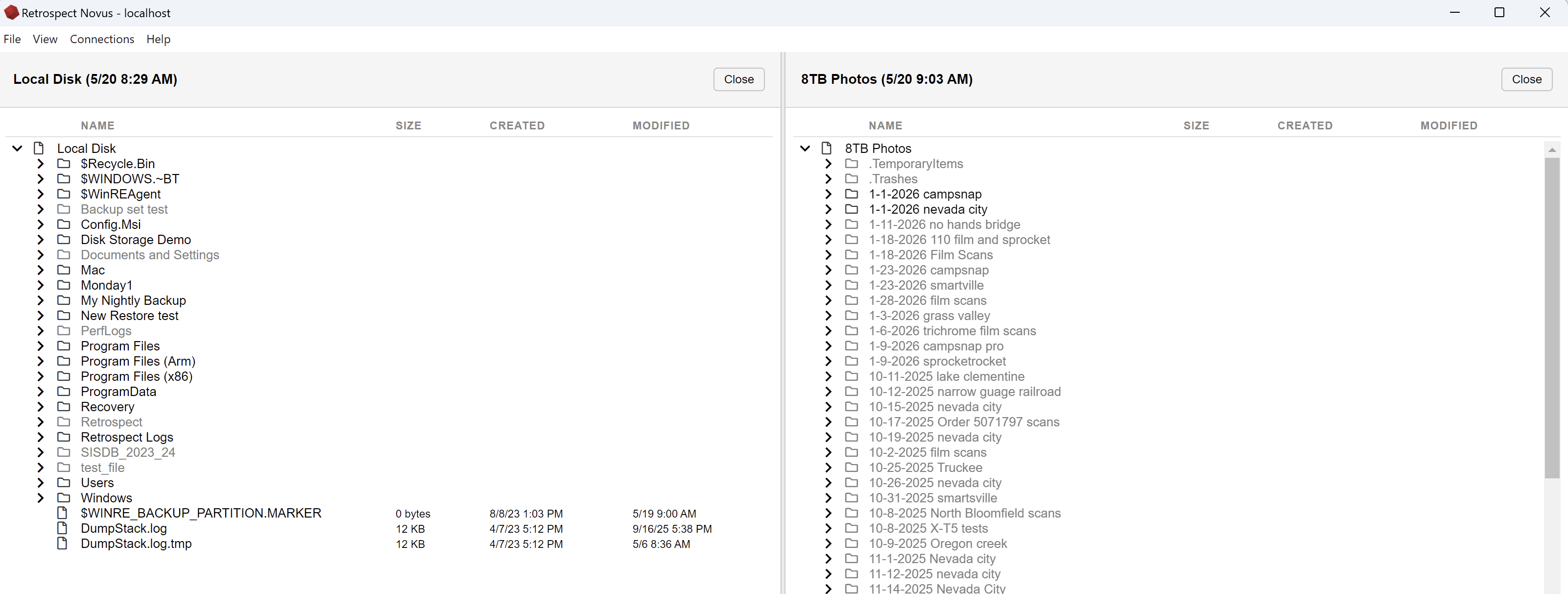
When you are preparing for a restore, Retrospect will allow you to compare two different backups to decide which snapshot has the data you would like to use for your restore. This guide shows how to use this split view feature.
-
Click Restore and select the snapshot you would like to use in your restore and click the Restore button at the top of the window.
.png)
-
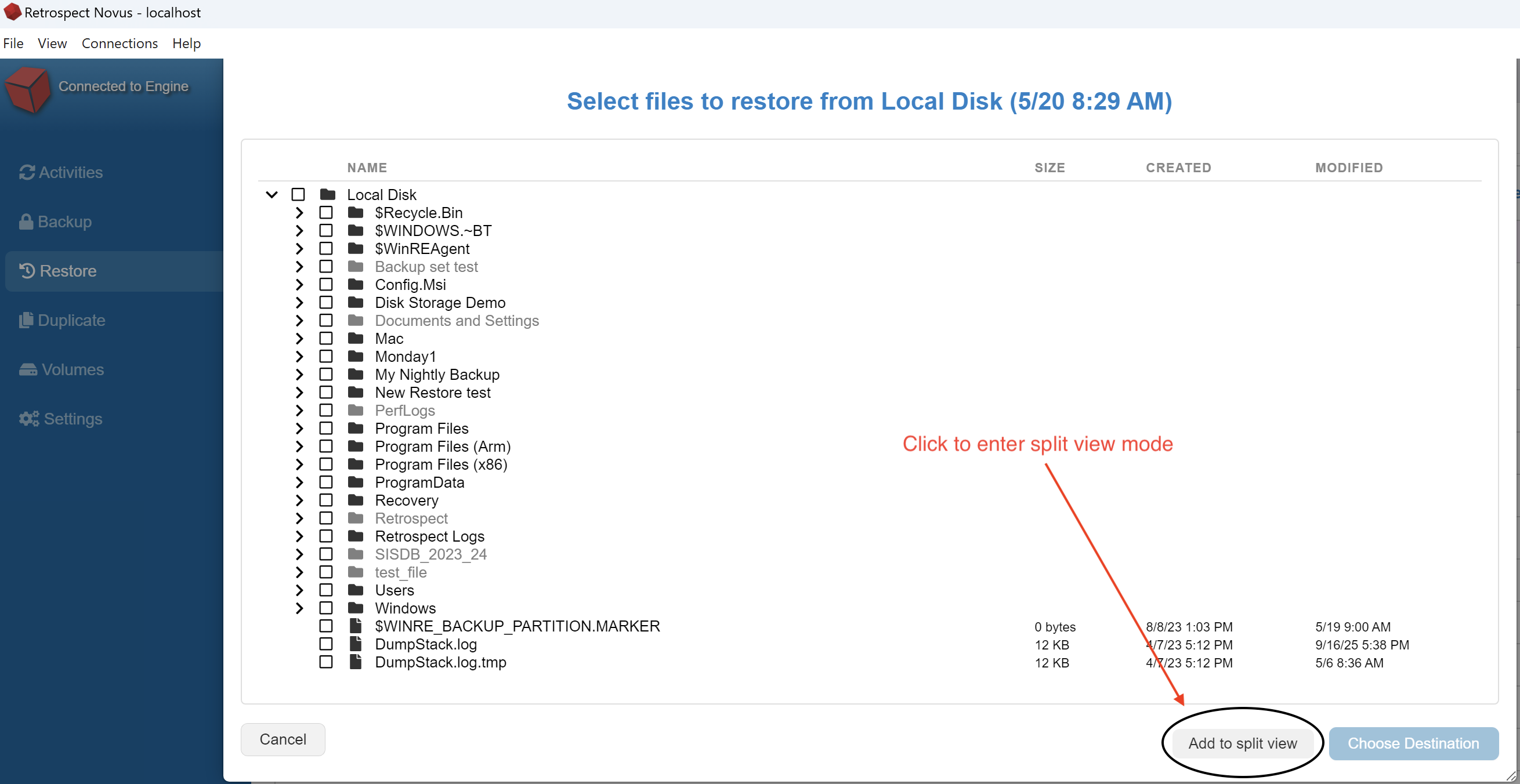
After Retrospect displays your list of files and folders, you can click Add spit view from the bottom right.
-
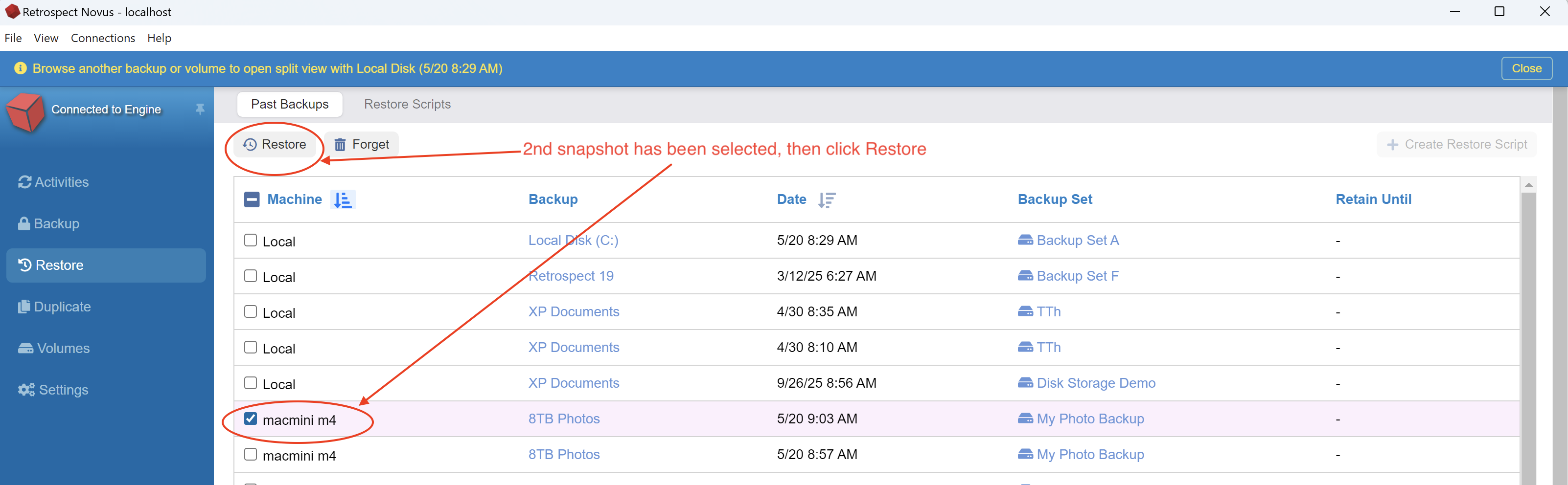
Now select a different snapshot you would like to view and click Restore at the top left again.
-
Now click Add to split View in the bottom right a 2nd time to enter the Spit View mode. This allows you to compare 2 different snapshots and pick the files you want from one of the two browser panels. You can click Close to close one of the views and perform a restore.