This tutorial will show how to create a new Disk Backup Set using the Retrospect Novus interface.
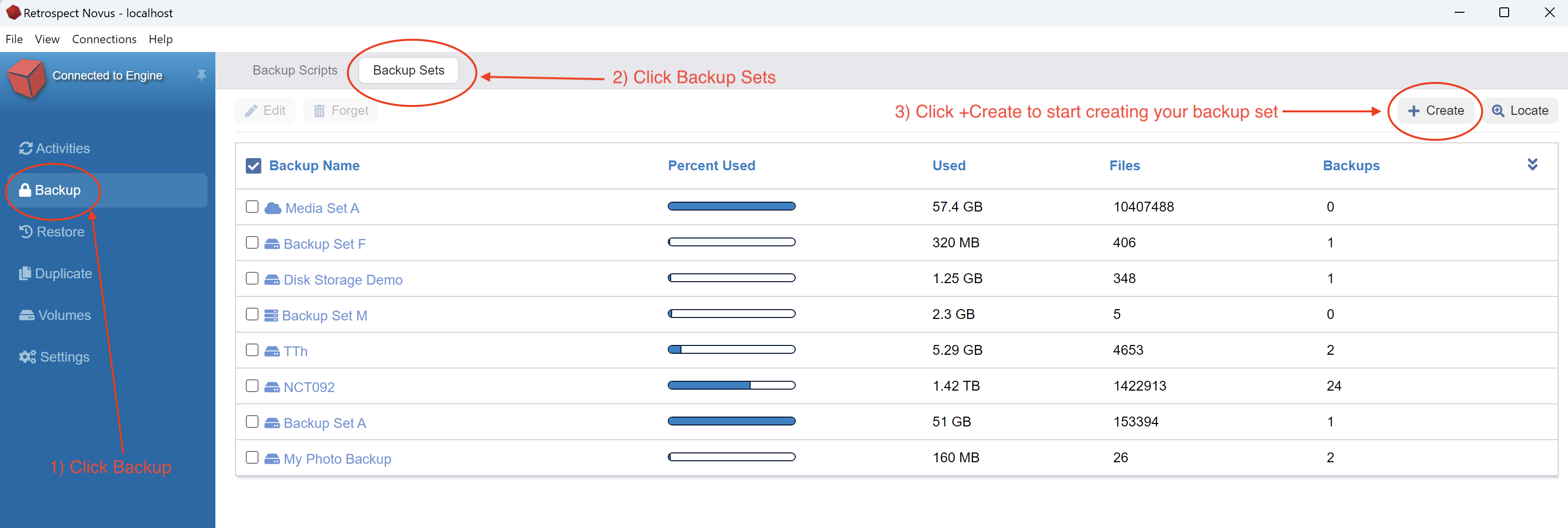
- Click Backup on the left side of Retrospect and click the Backup Sets button at the top followed by clicking +Create
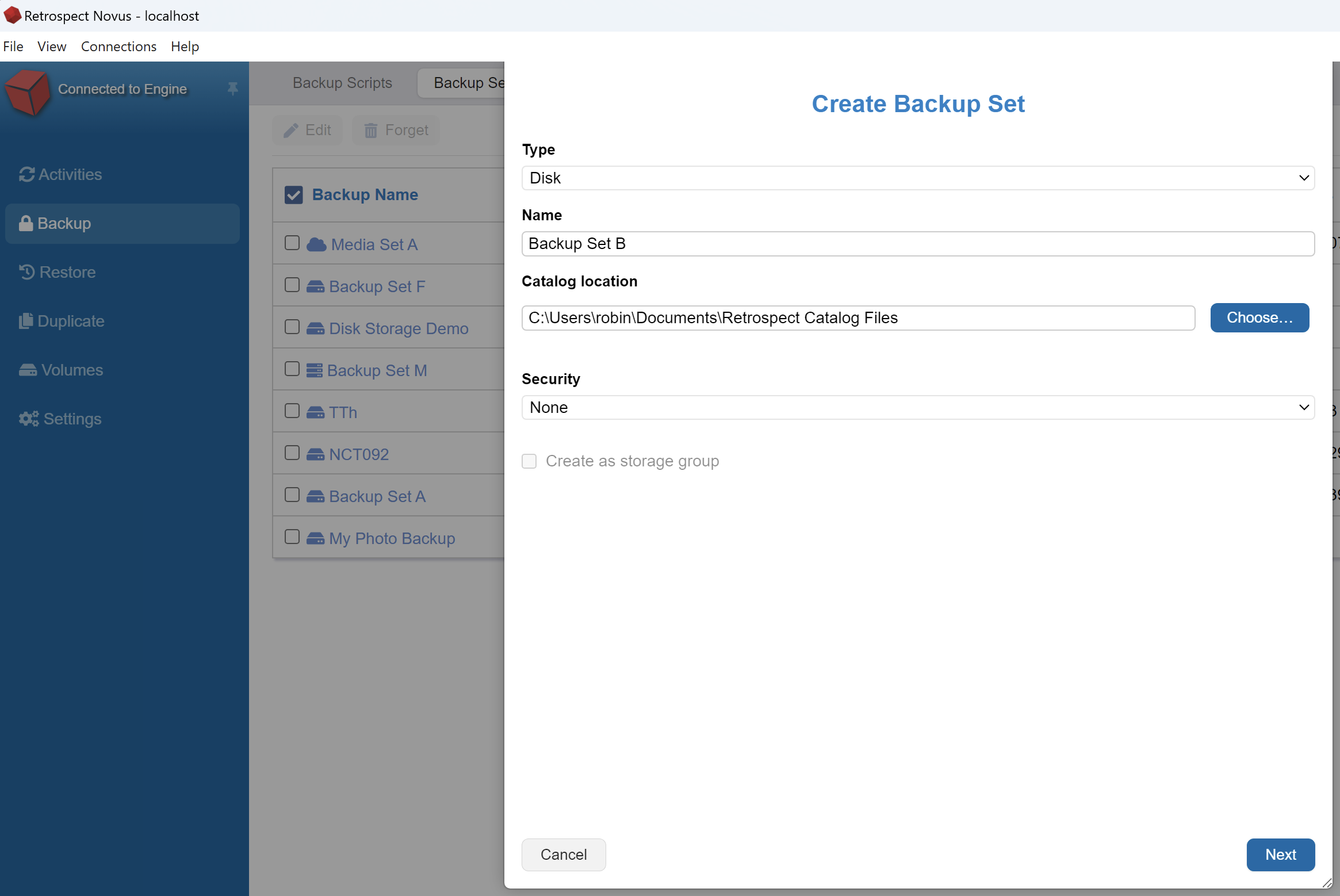
- You can now pick Disk for your Backup Set type
After picking Disk, you can enter a unique name for your new Backup Set and then select the location for your catalog file.
-Windows catalog files are usually saved into the Documents\Retrospect Catalog Files folder.
-Macintosh Catalog files are normally in library/application support/Retrospect
-Linux Catalog file default is /ect/Retrospect/Catalogs
Next you select your encryption options
- Click Next to continue the set creation. This will allow you to pick your grooming options
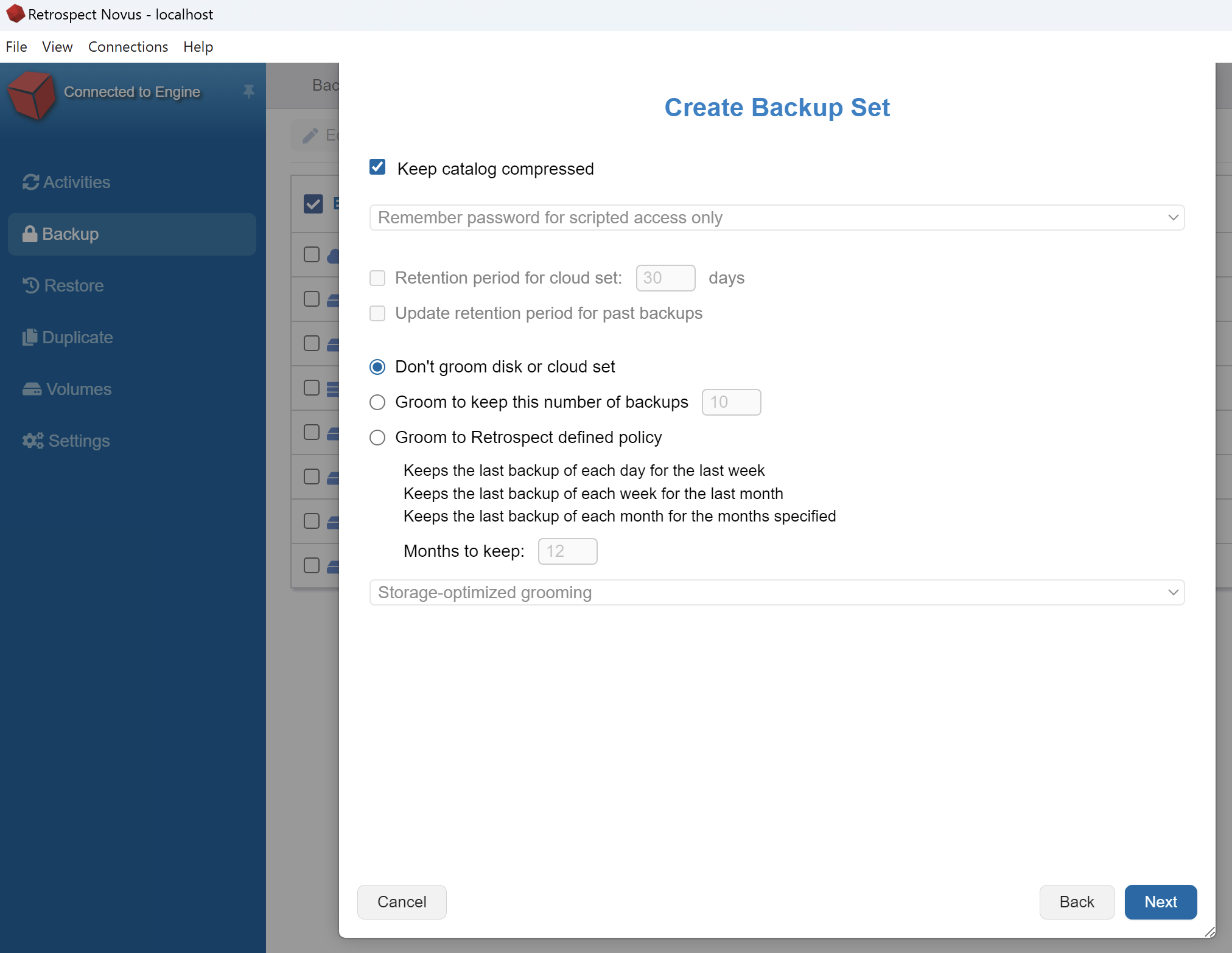
Click Next after you have made your selections. - Retrospect will next ask you to pick a location for the first member of the disk backup set.
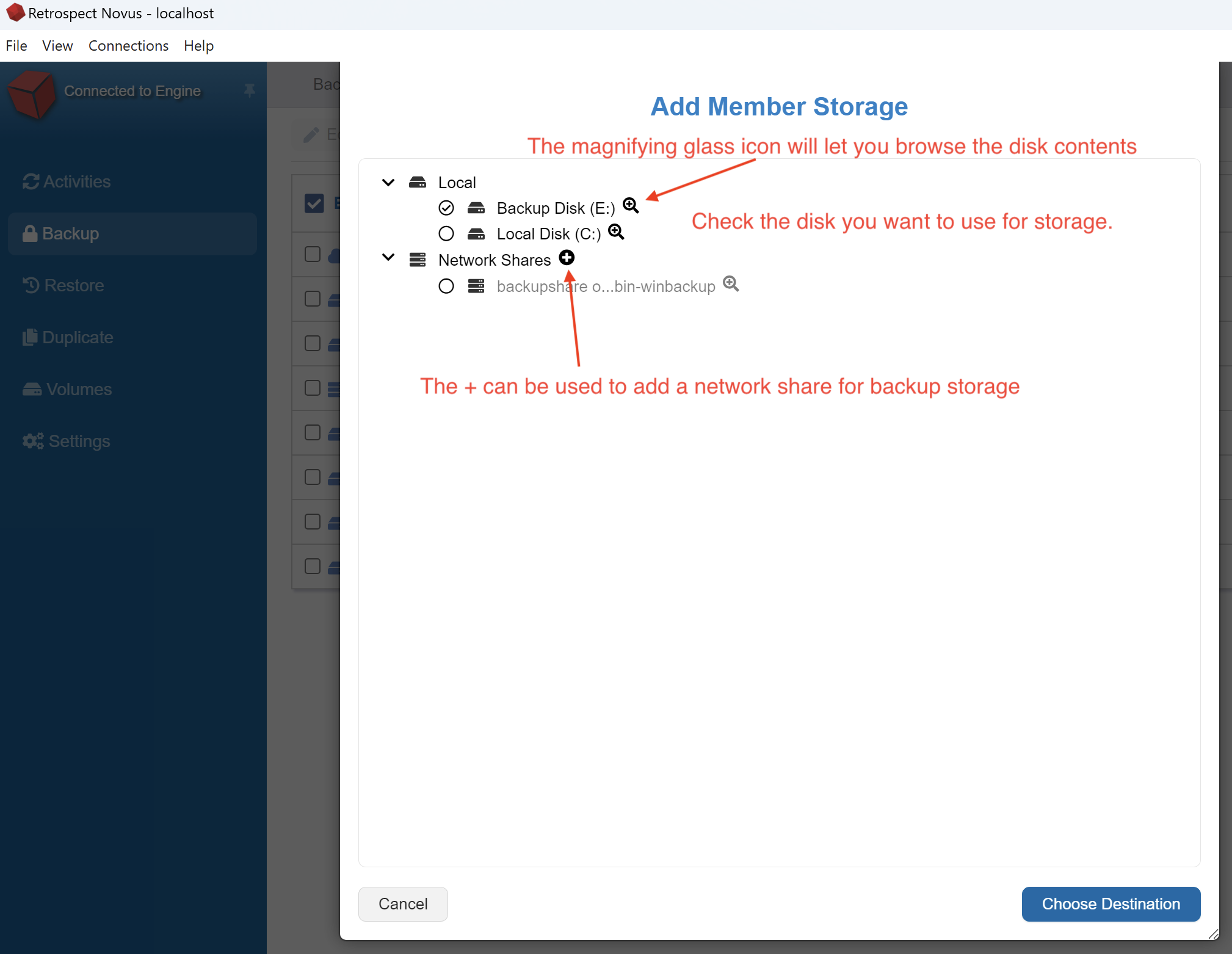
Click the Choose Destination option at the bottom to confirm your choices and click Create.
Changing Backup Set Options
Under Backup on the left side of Retrospect, you can click on BackupSets. Once a Backup Set has been selected, you can use the Edit button to make changes.
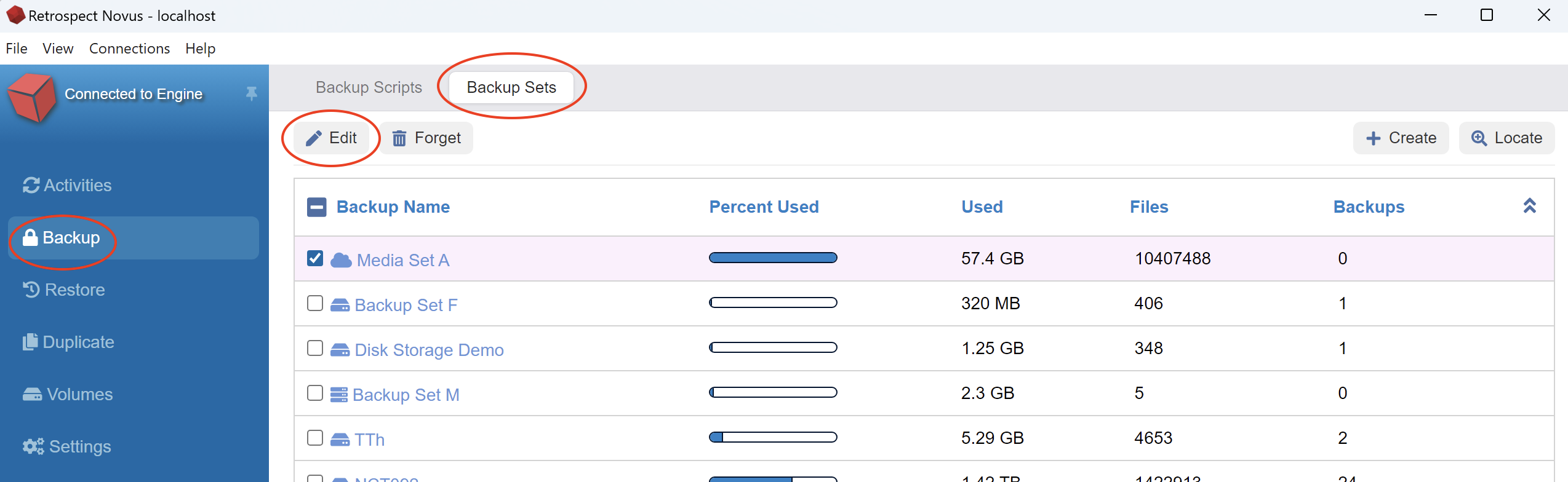
The edit button will allow you to change the Catalog location, view security details and change your Grooming choices. You can also view details about the Backup Set Members.