To view a running backup or restore operation in Retrospect Novus, you will start by clicking the Activities button in the upper left side of Novus.
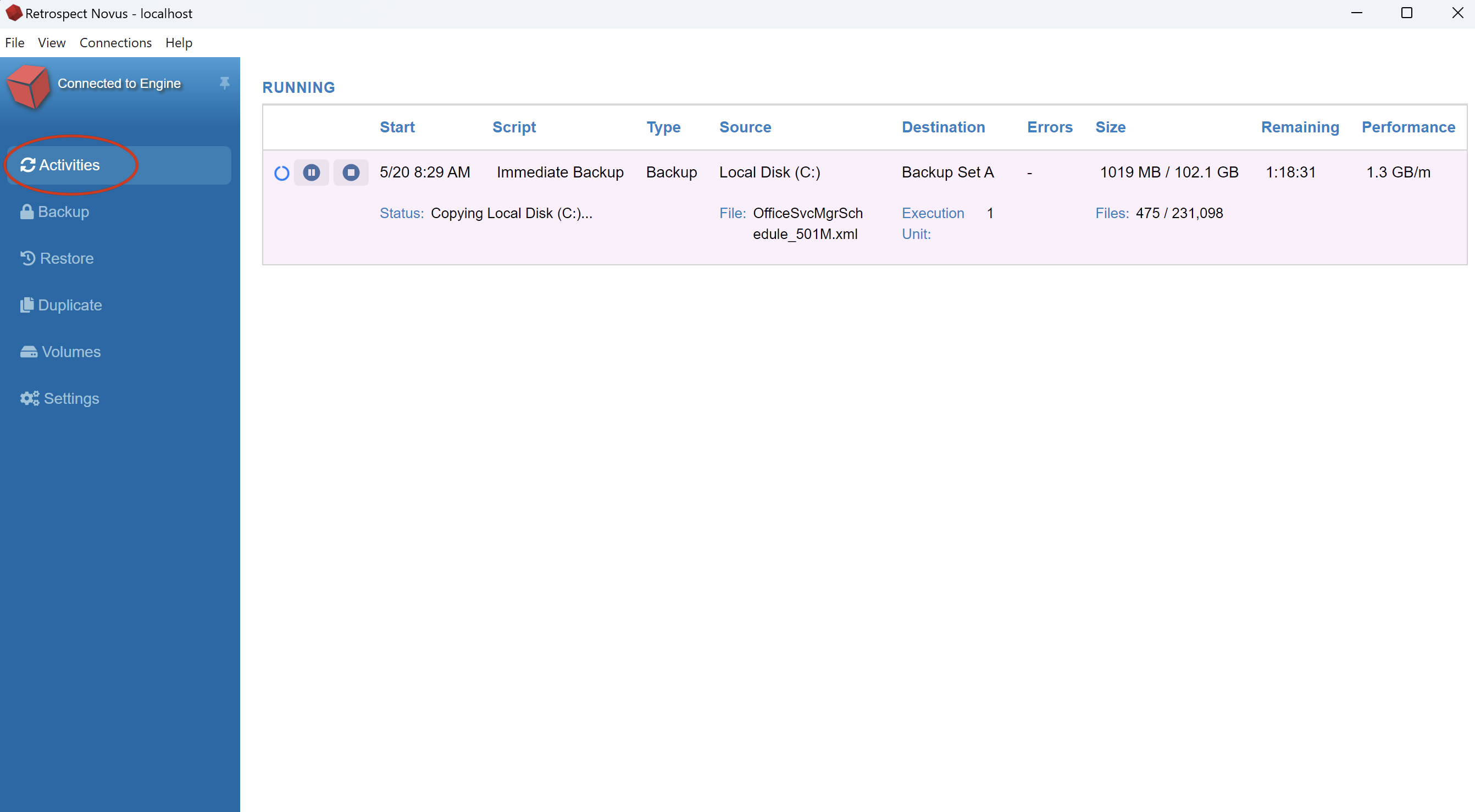
This window will show you each execution that is actively running inside Retrospect. The status will change in real time to display the file being copied, the execution unit, the number of files completed/remaining, performance and details about the source and destination.
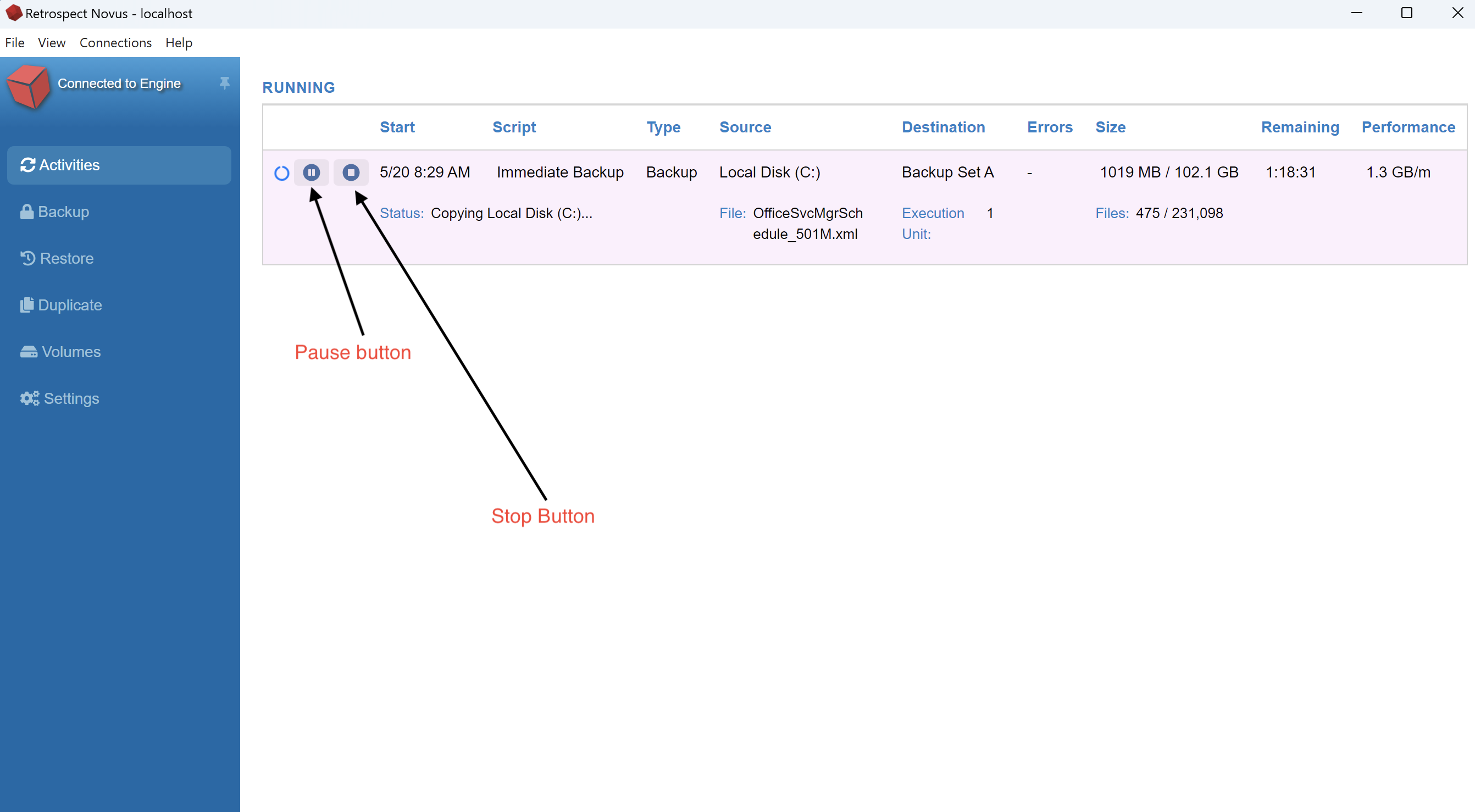
Stop and Pause
If you need to stop or pause a running execution, you will find buttons in the upper left side of that running execution
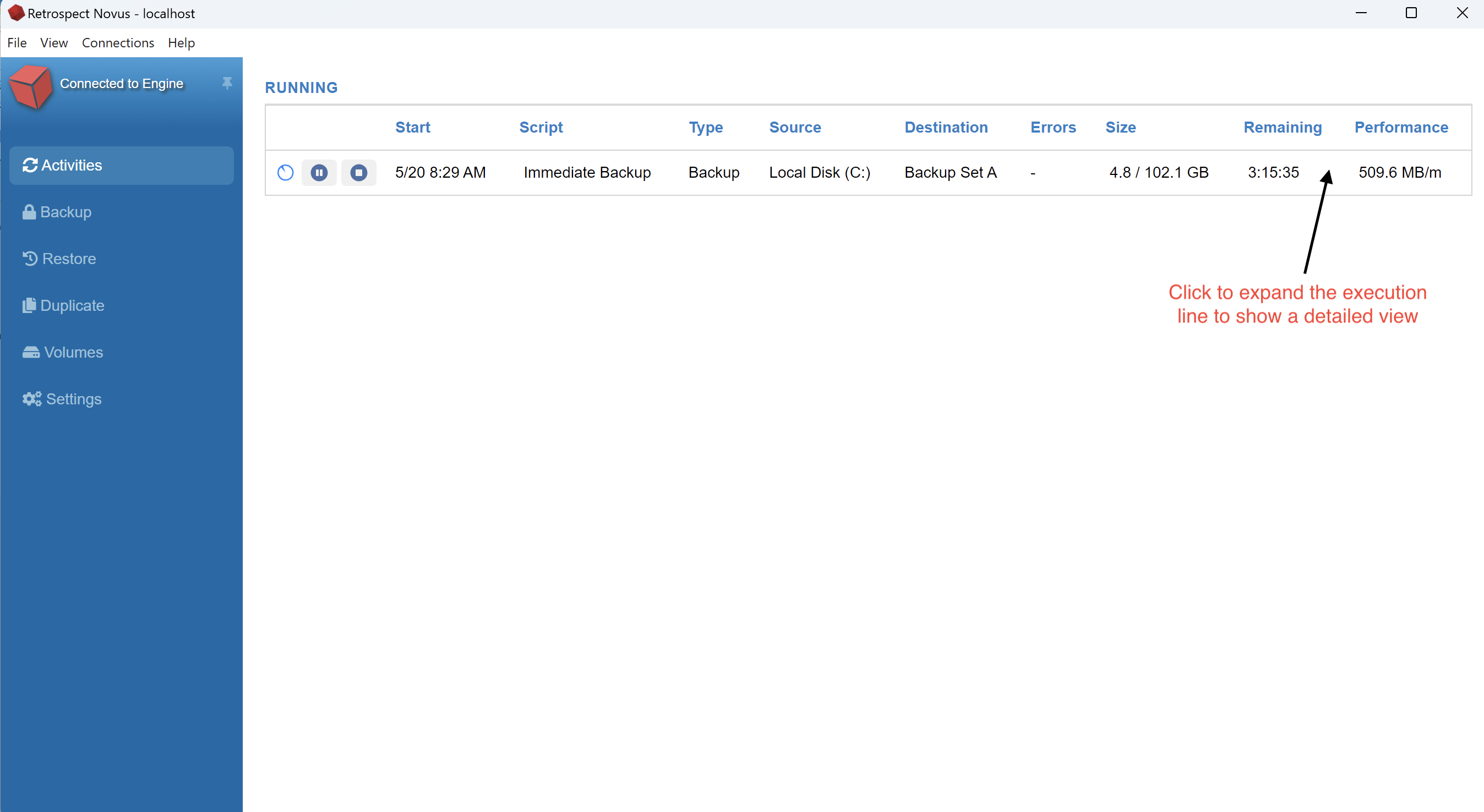
Expanded View
If your copy of Novus is only displaying a limited view of the running activity, you can click on the activity and it will automatically expand to show more details
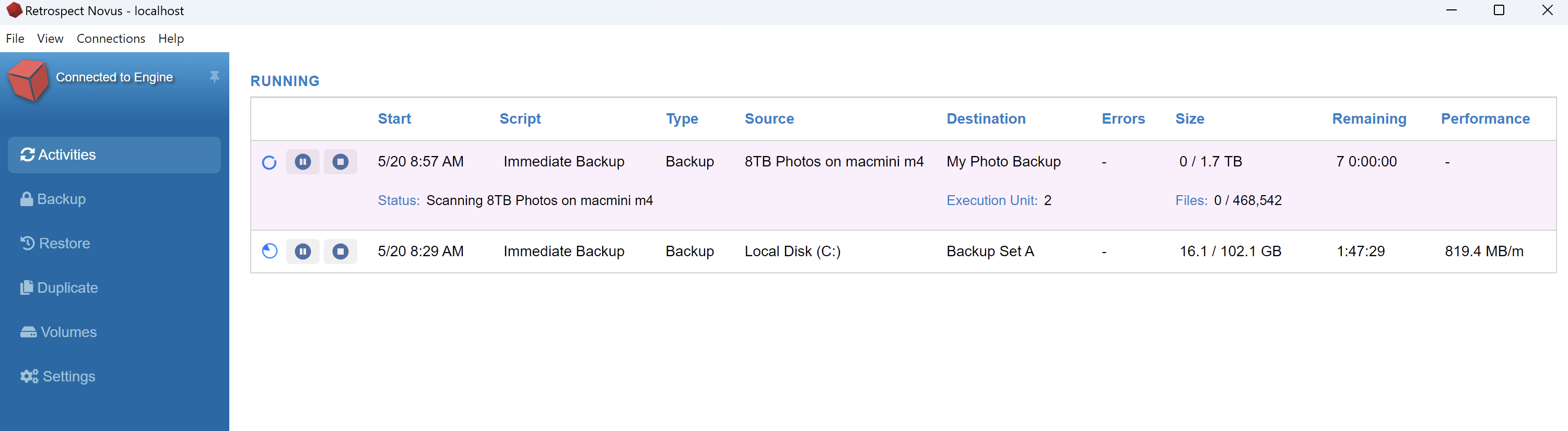
Multiple Executions
When multiple executions are running at the same time, you will see individual lines appear in the Activities tab. Each execution will have individual pause and stop buttons.
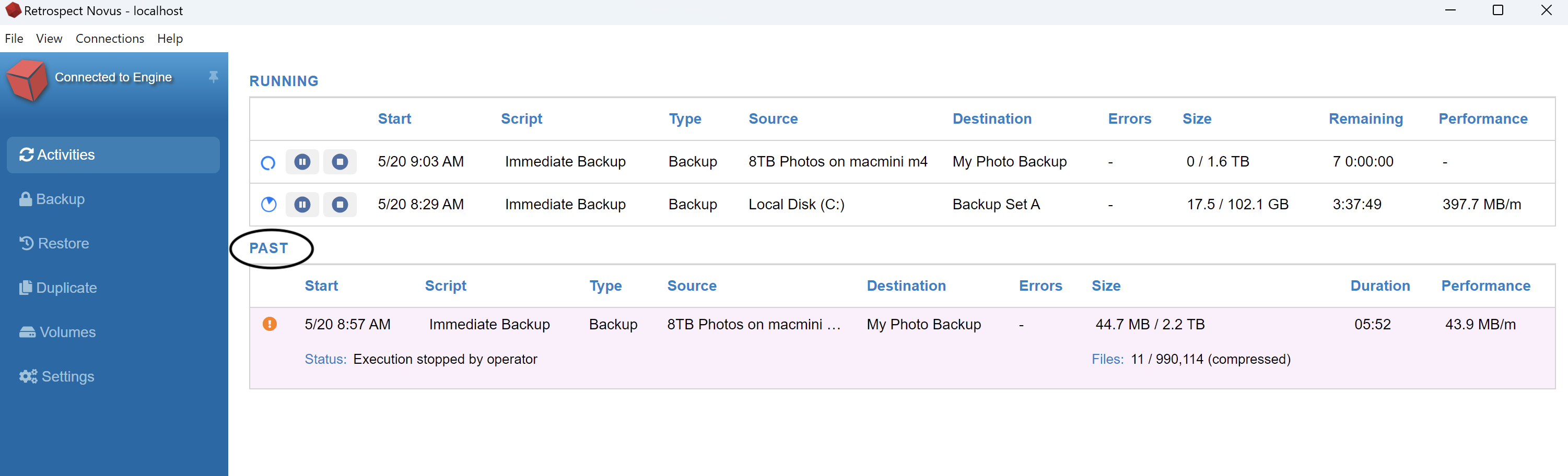
Past Activities
When a backup has completed or has been stopped, you will see an entry appear in the Past section of the Activities tab. When you click on a past activity, the line will expand to show details about that operation.
Media Request
If you are doing a backup and Retrospect requests media, the Novus interface will display a media request alert in the status heading of the activities tab.
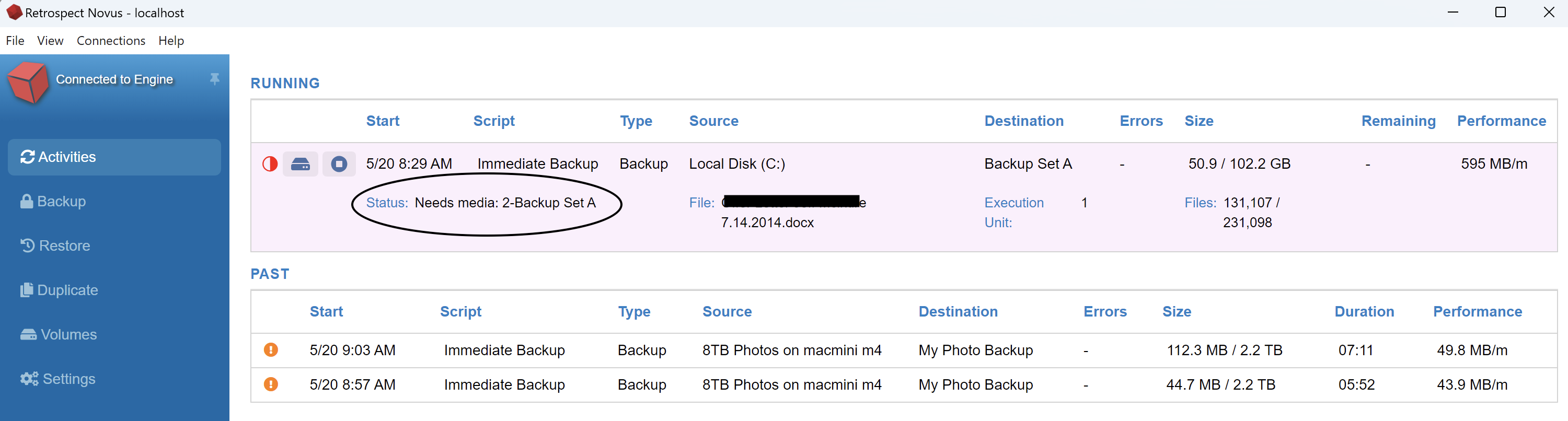
Once you see the media request, you can connect your backup storage device to continue the backup. If you need to specifically select media or need to view more details, you will want to open the full Retrospect interface. If you are on Windows, you would open Retrospect 20 from your start menu. On the Macintosh, you can open Retrospect.app from the Applications folder to view additional details.