Restoring Individual Files and Folders in Retrospect
This document explains how to restore individual files and folders from a previous backup in Retrospect, using Advanced mode and the default “Retrieve Files and Folders” option so that restored data is placed in a new folder without overwriting existing files.
Step 1: Open the Restore Workflow in Advanced Mode
From inside Retrospect, click Restore.
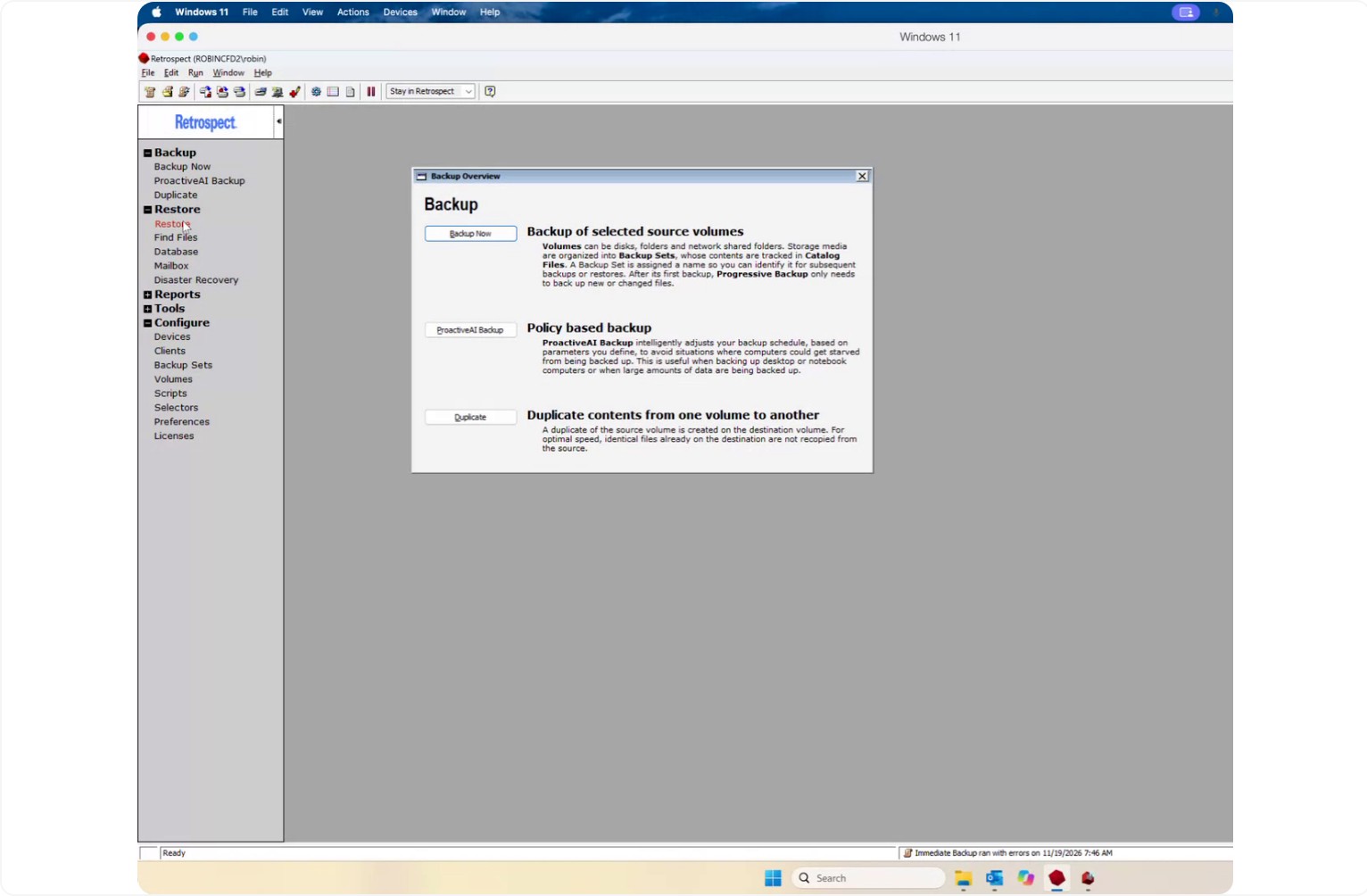
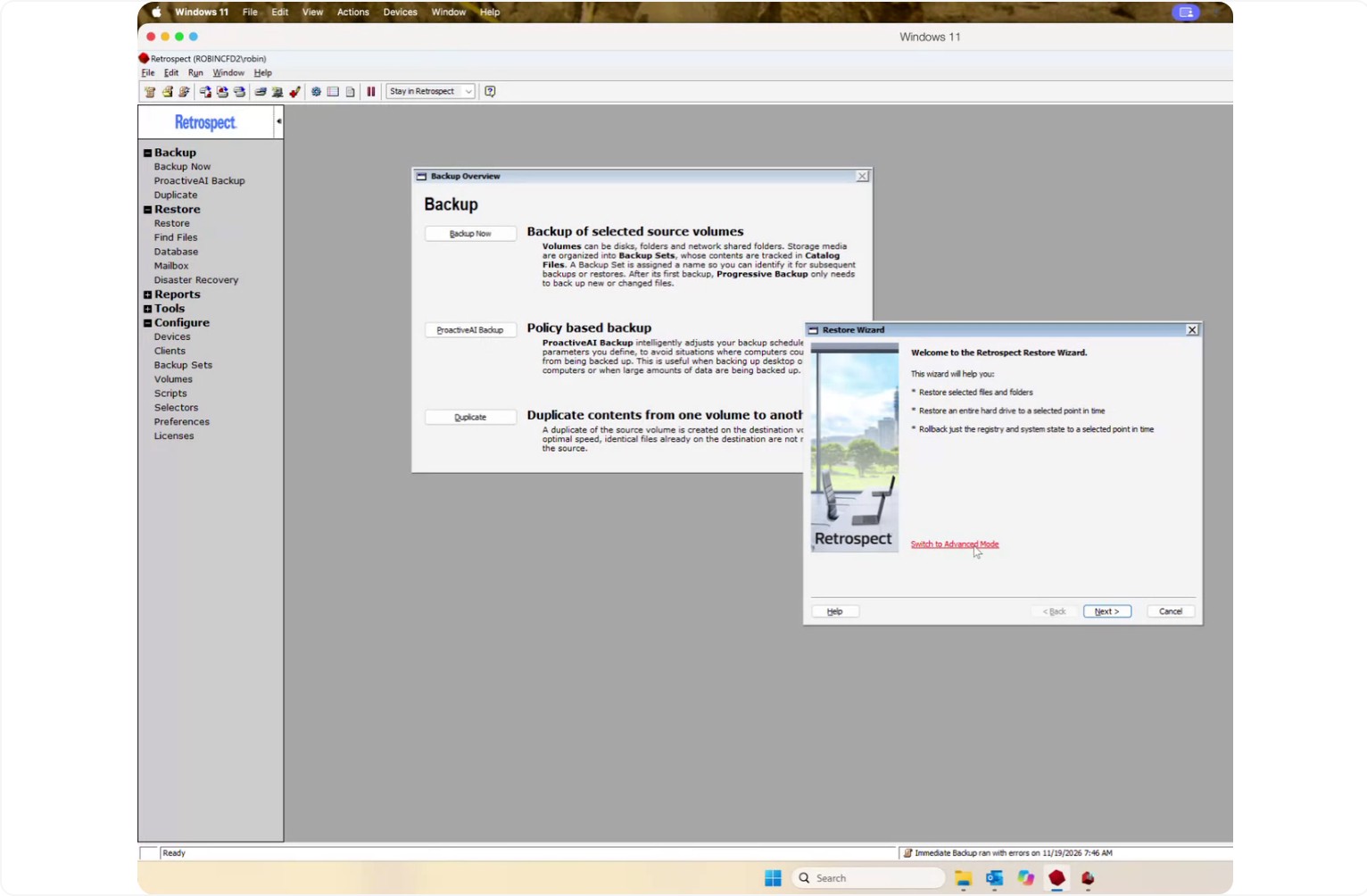
In this example, switch to Advanced mode.
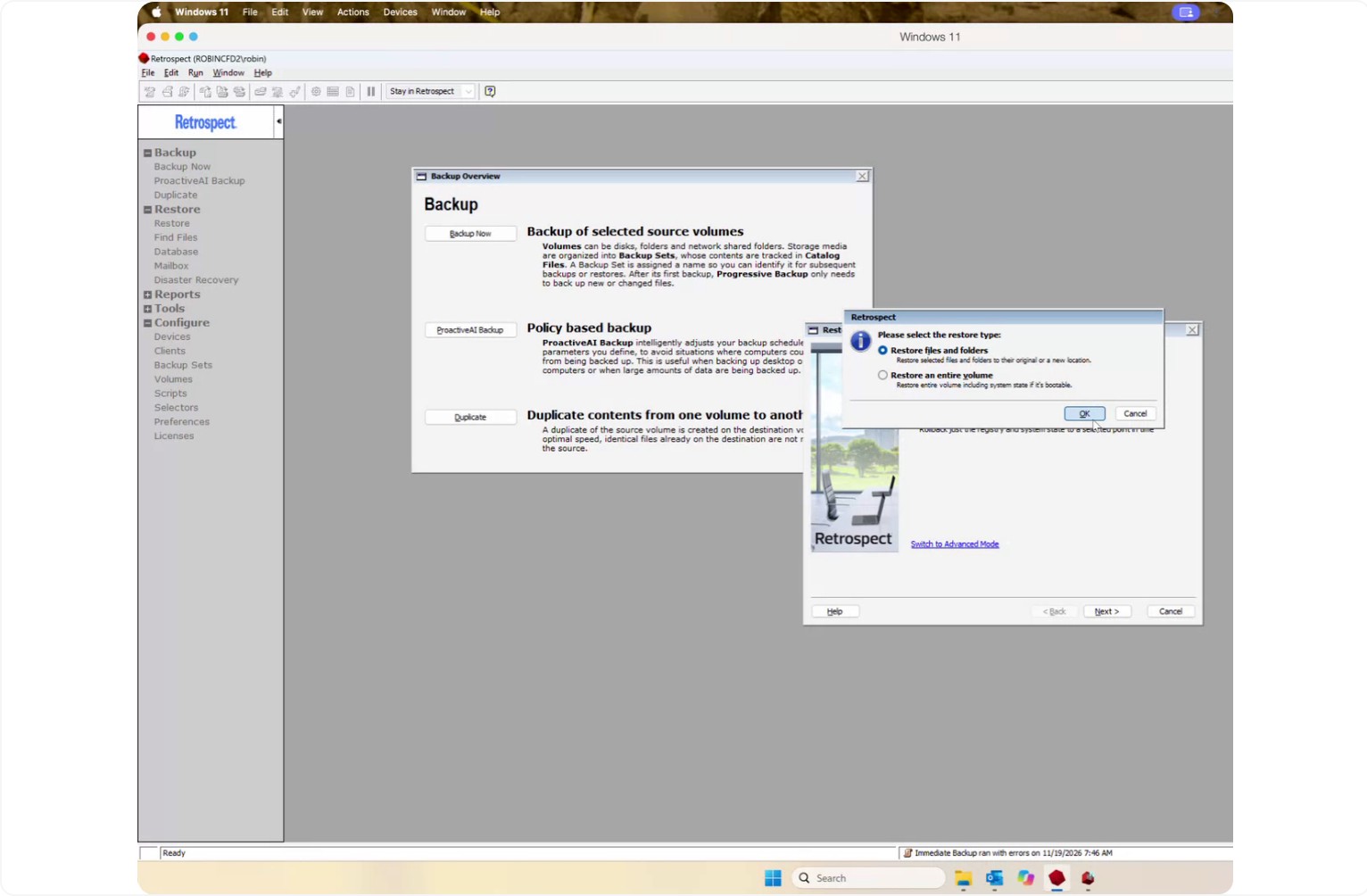
Select Restore files and folders and click OK.
Step 2: Select the Source Backup Set and Date
Go to the Sources tab.
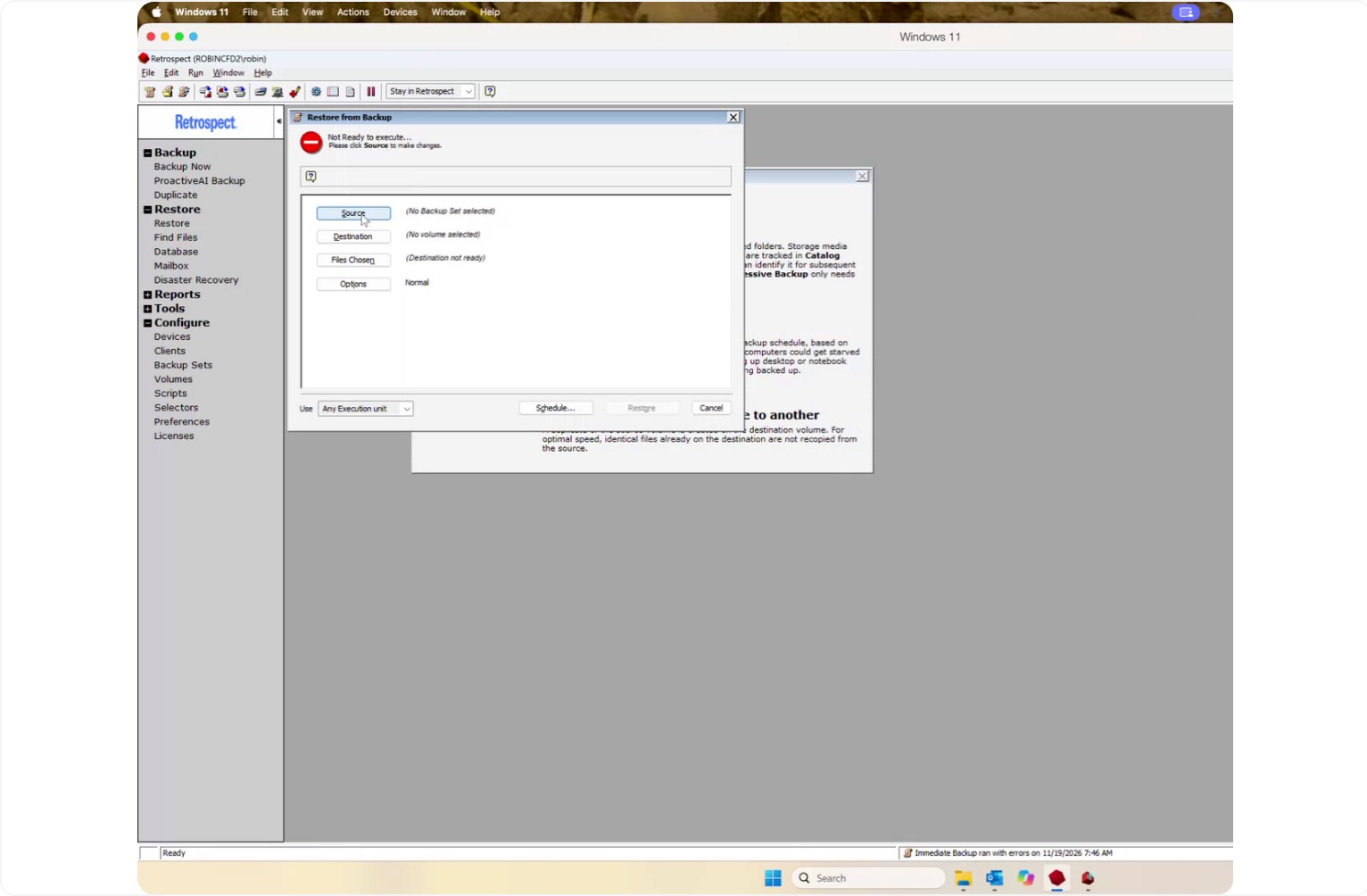
Choose the backup set you want to restore from.
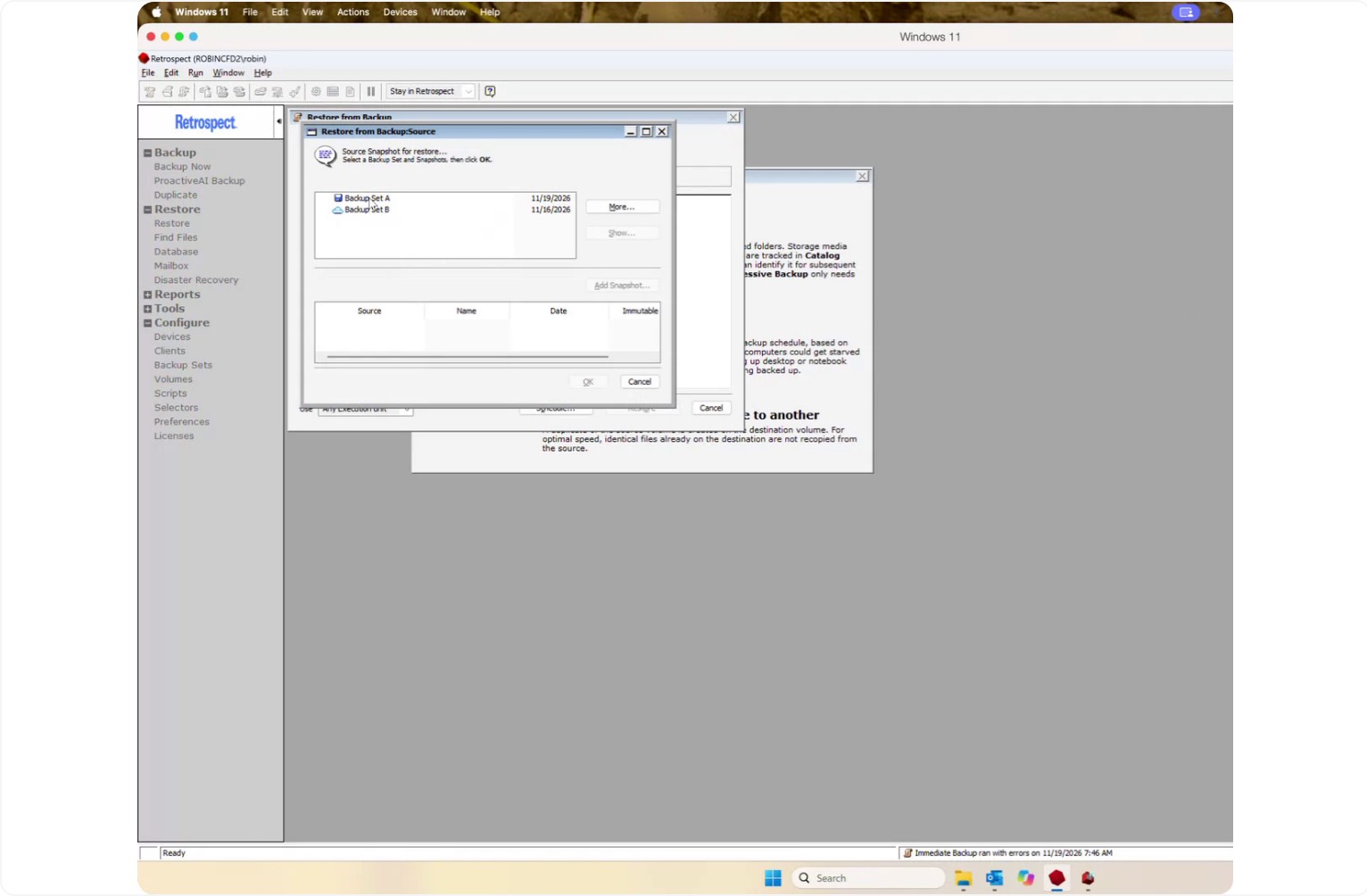
In the bottom half of the window, review the list of previous backup dates, then select the desired backup date.
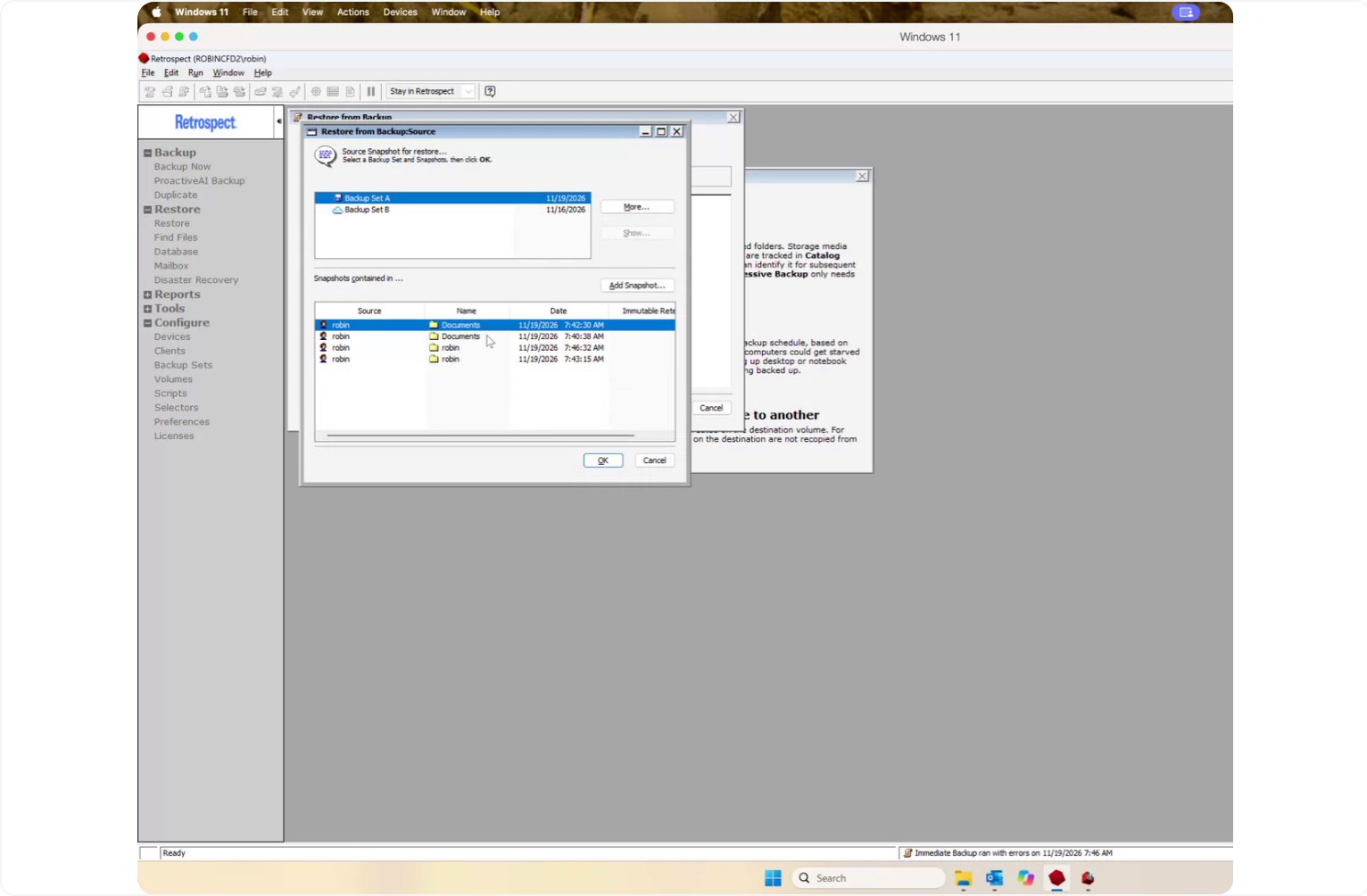
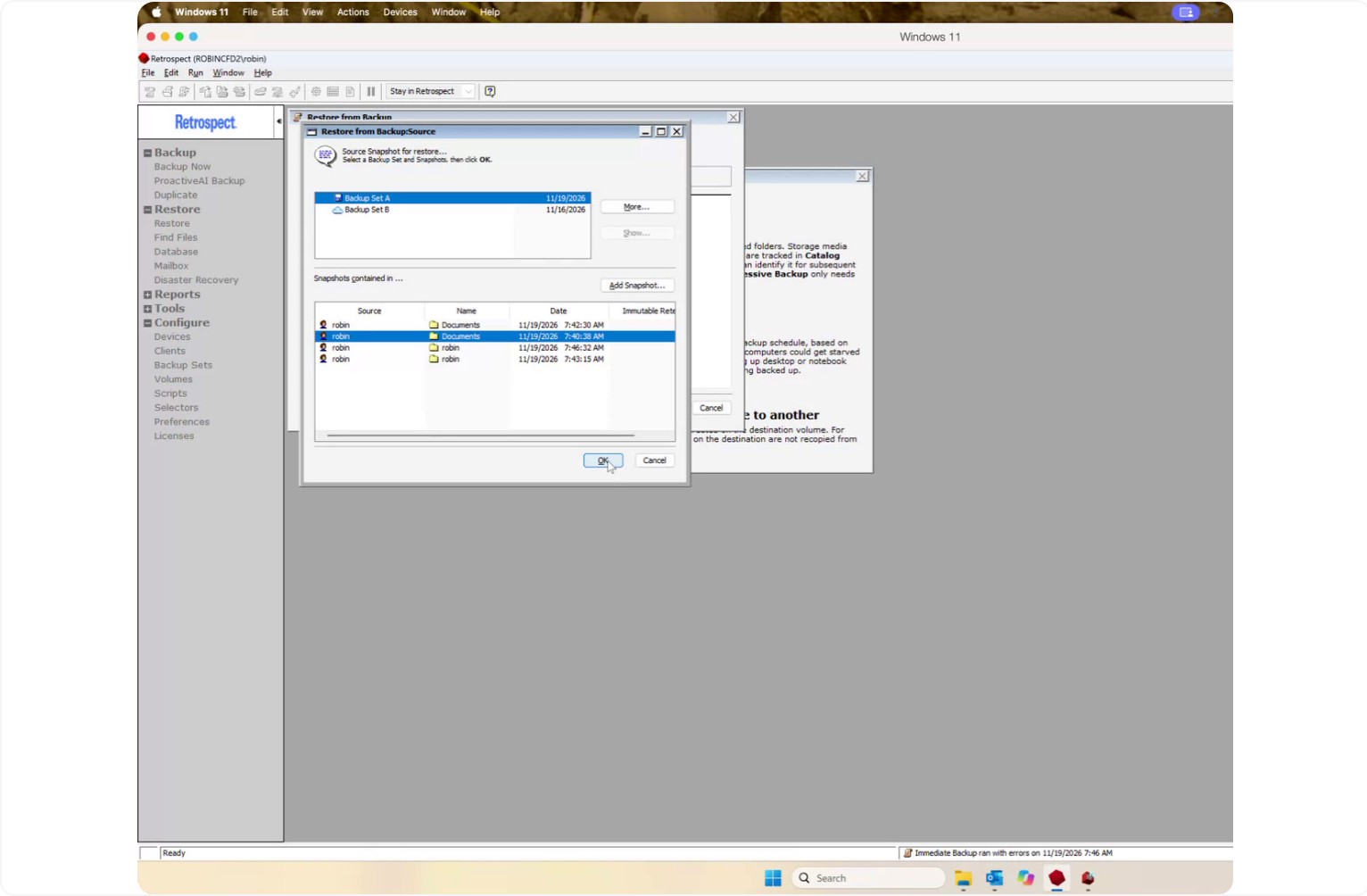
Click OK to confirm your source and backup date.
Step 3: Choose the Restore Destination and Method
Go to the Destination tab.
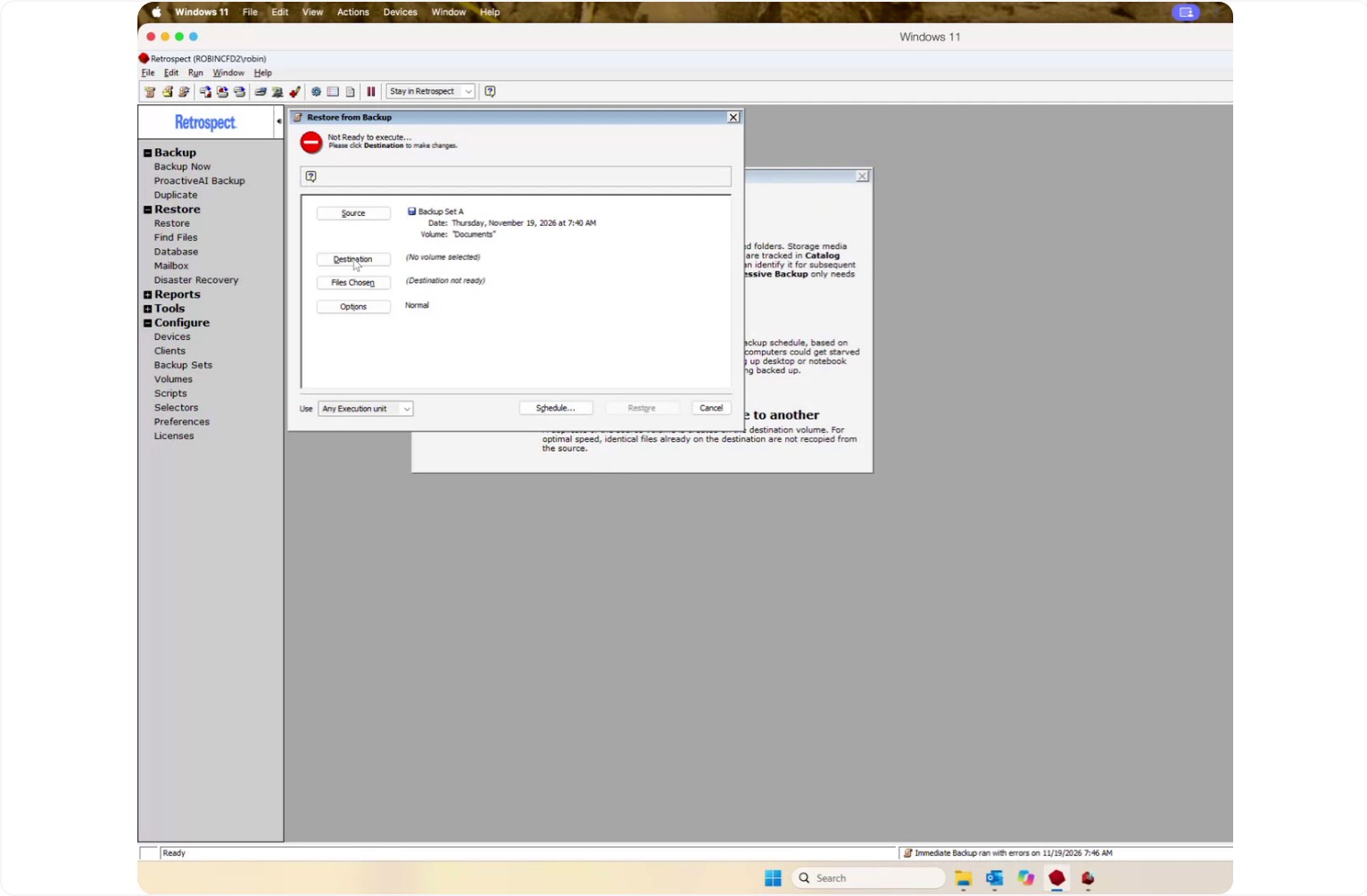
Decide where you want to place the restored files. The easiest and default method is Retrieve Files and Folders, which restores your data into a new folder without overwriting any existing data.
If you want to place files back in their original locations, you can instead choose options such as:
- Restore Missing Files Only
- Replace if Backup is Newer
- Replace Corresponding Files
In this example, use the default Restore or Retrieve Files and Folders option.
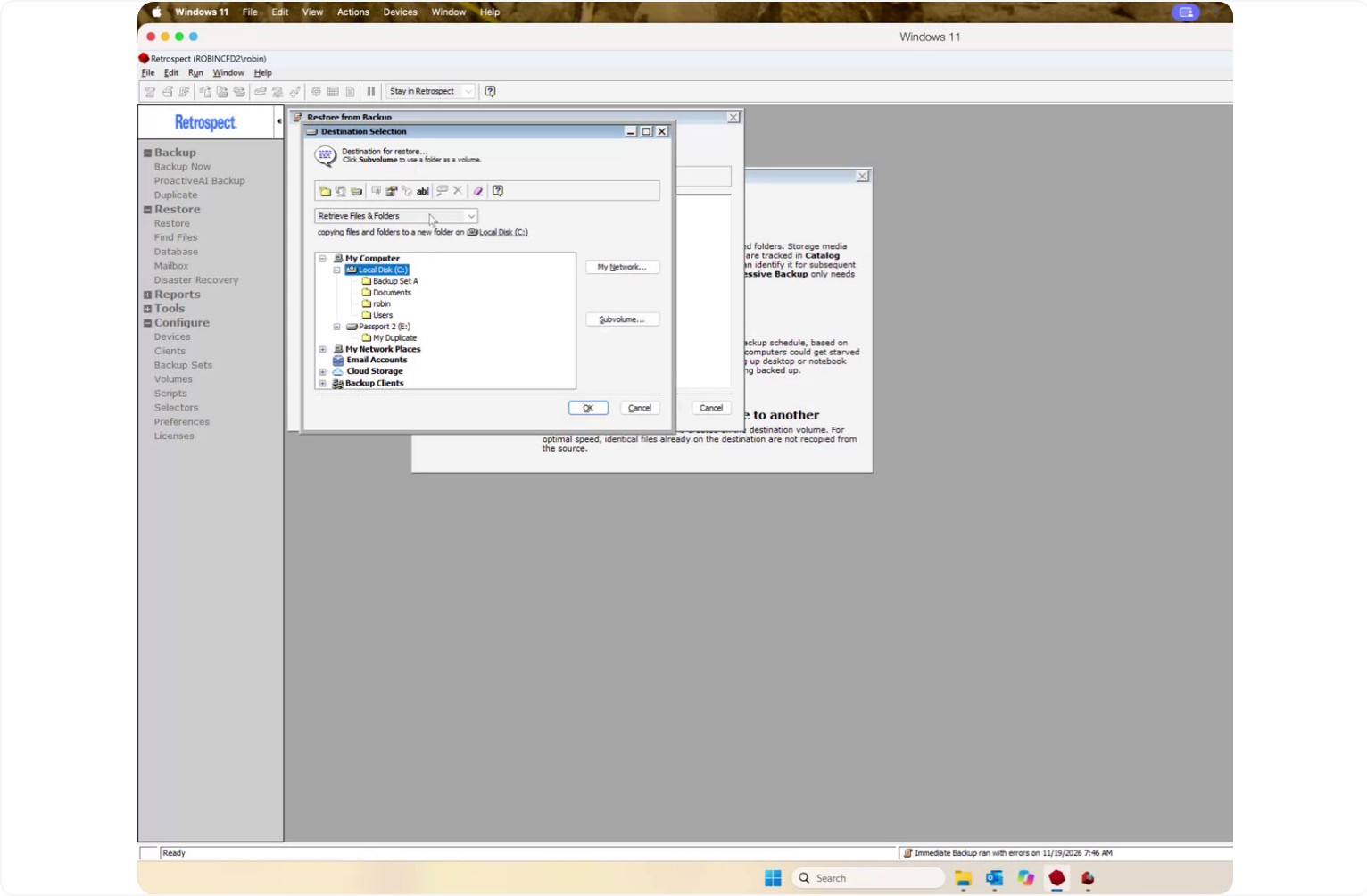
Confirm that Restore/Retrieve Files and Folders is selected, then choose the disk where you want to put your restored data.
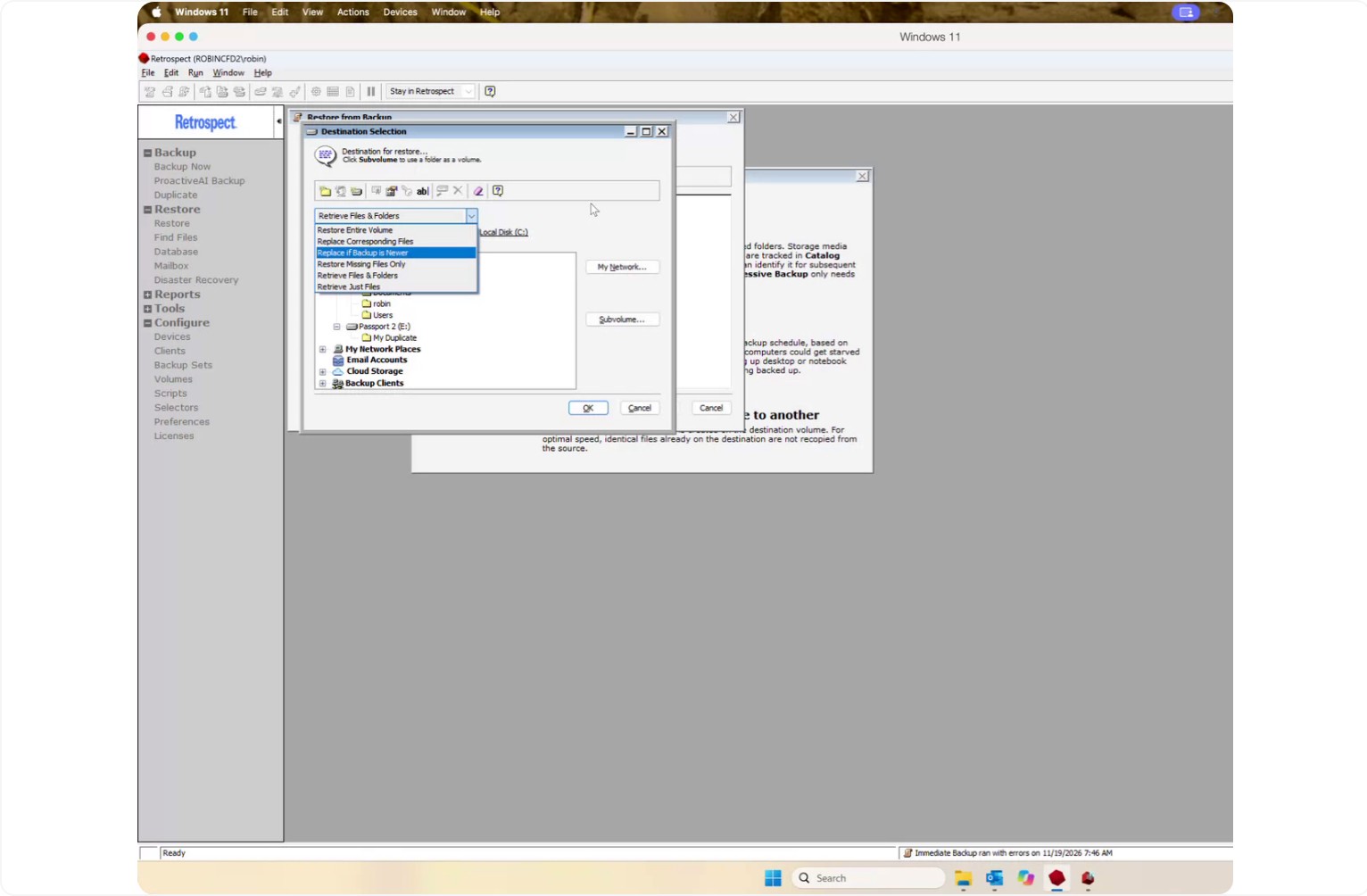
Click OK to confirm the destination.
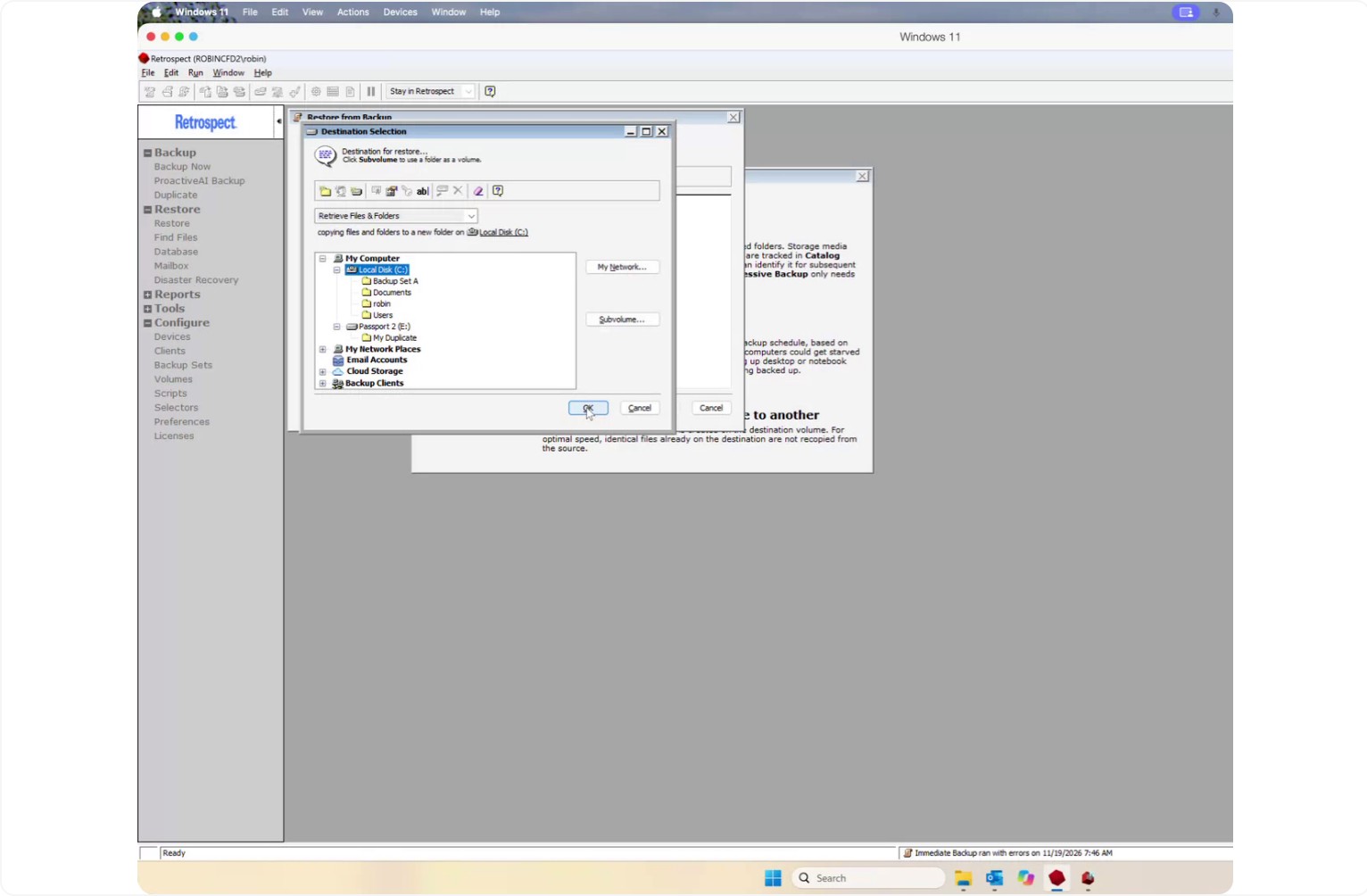
Step 4: Select Files and Folders to Restore
Go to the Files Chosen section.
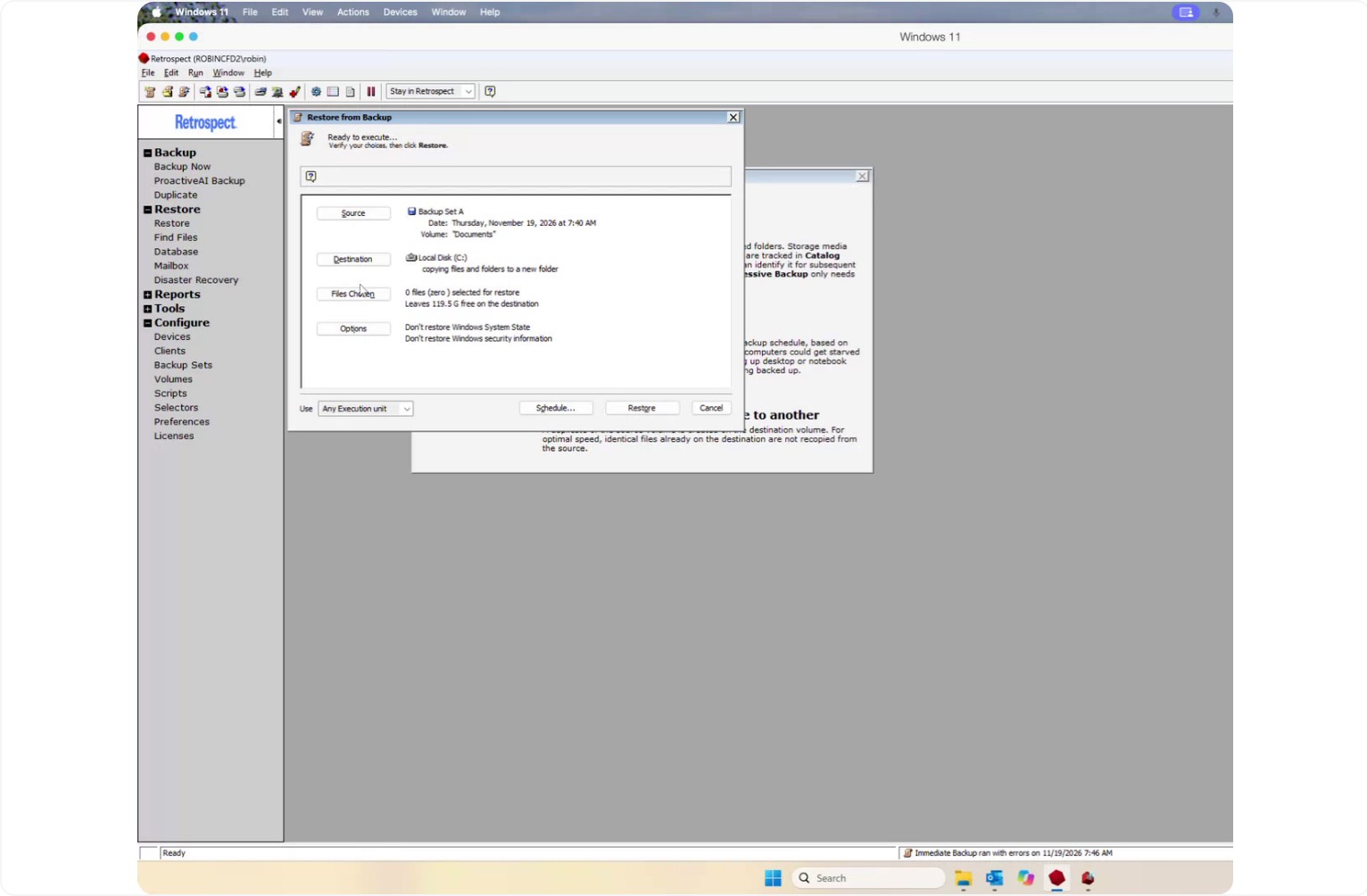
Retrospect will display a list of all files that are available to be restored.
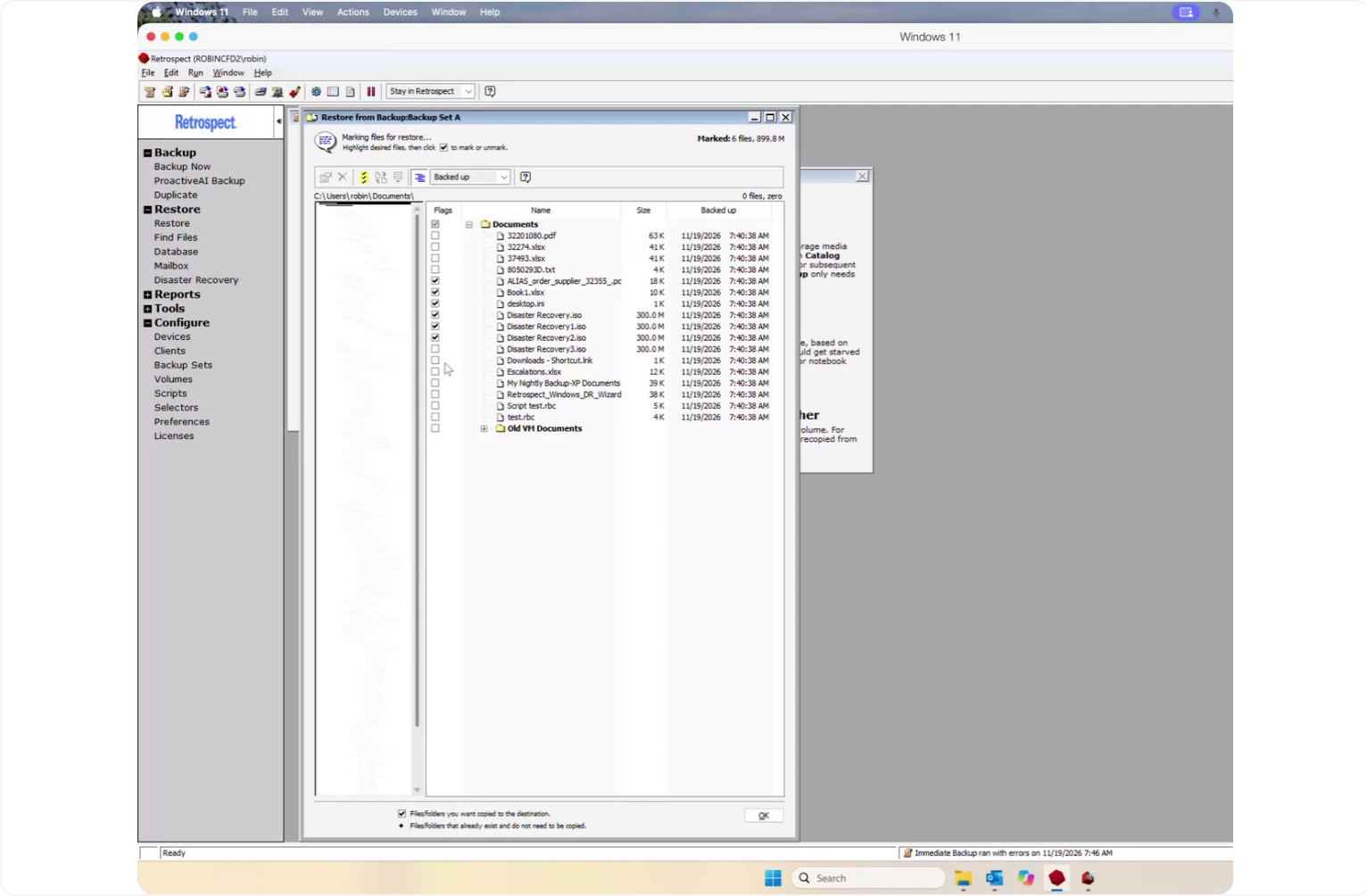
These are all the files that were on the disk at the time of the selected backup.
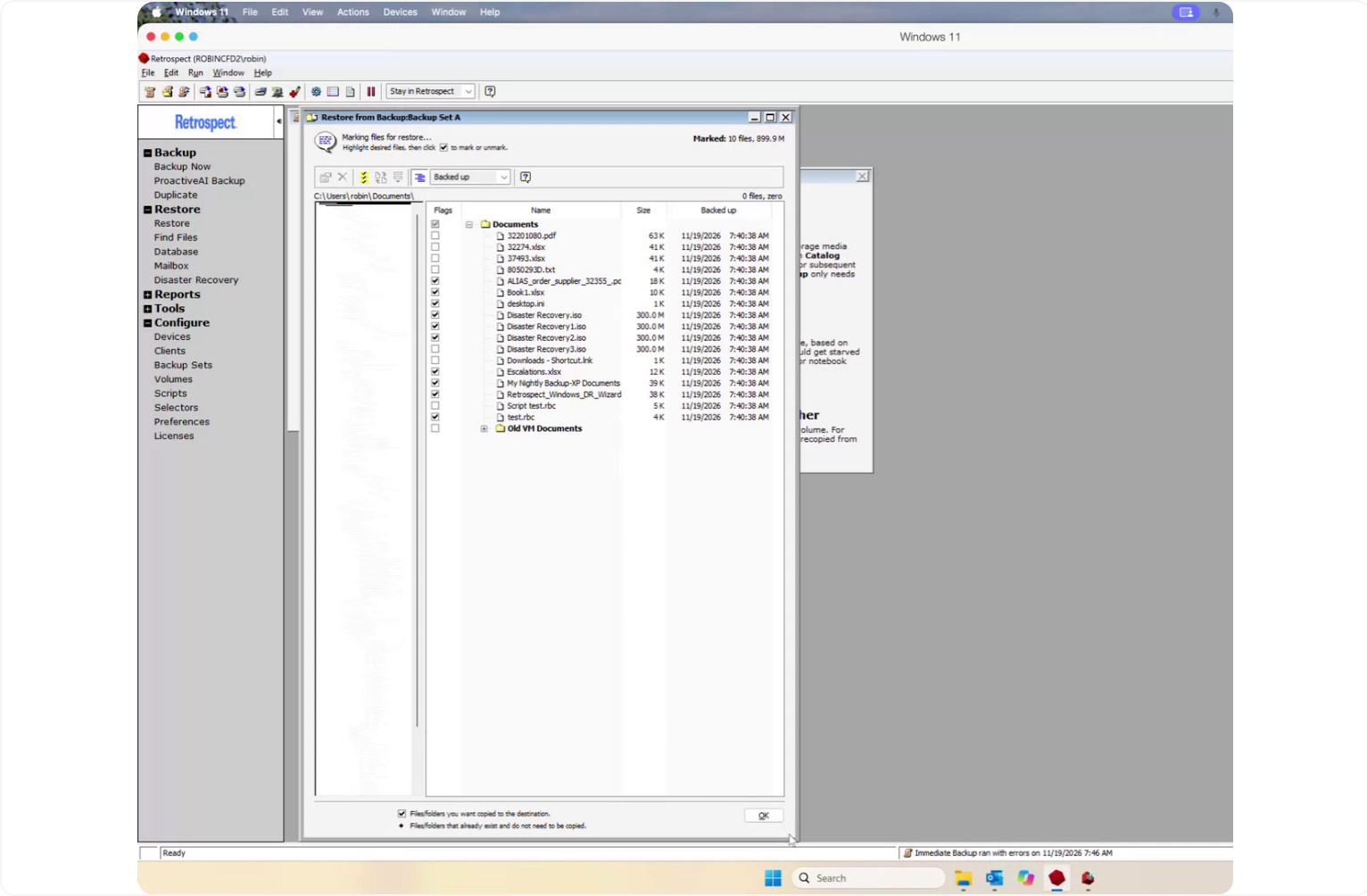
Select the specific files and folders you want to restore.
Step 5: Run the Restore Operation
Once your selections are complete, click Restore to start the restore operation.
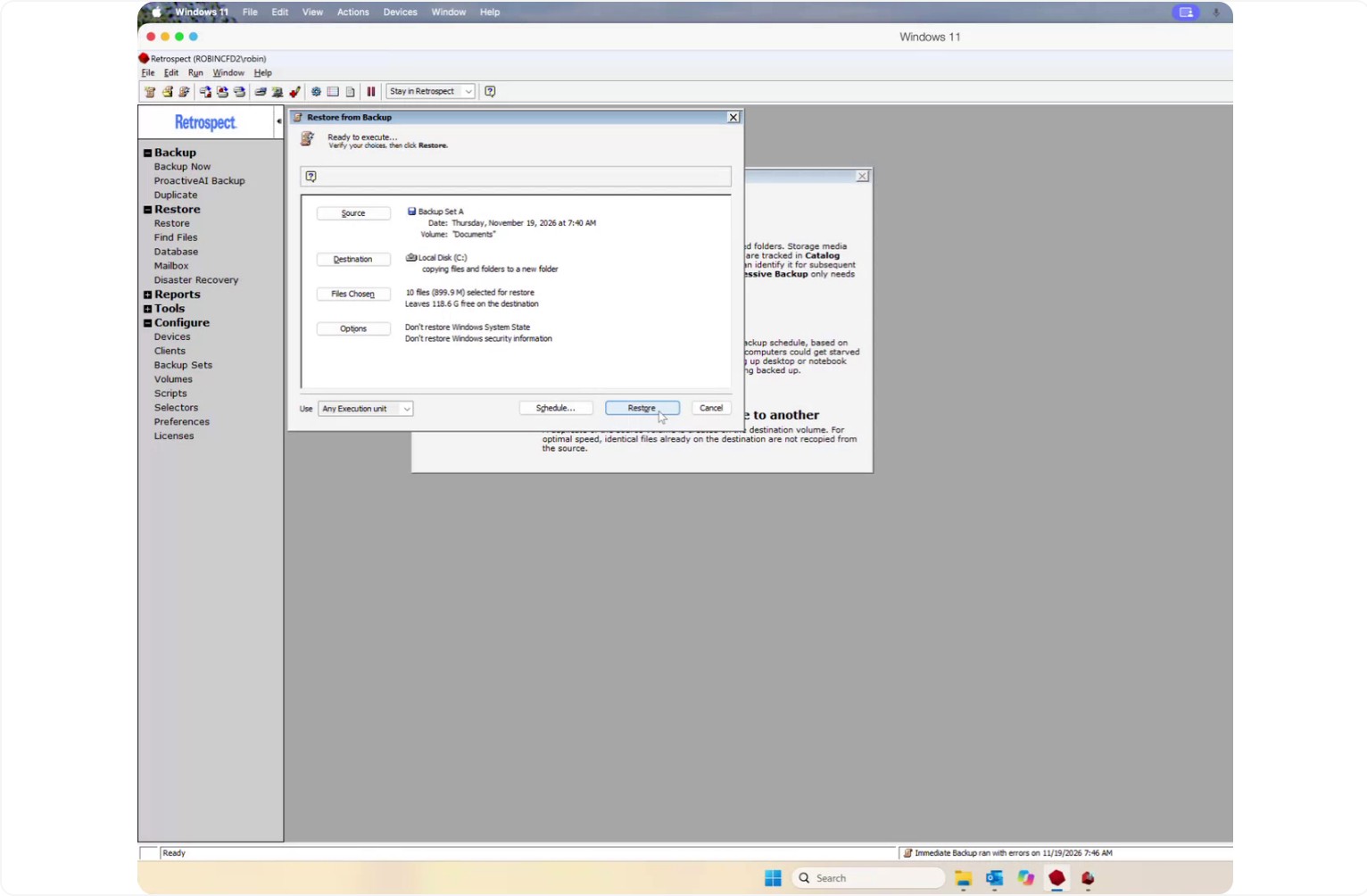
Retrospect will restore the selected data into a new folder on your chosen disk. The folder name will match the name of the backup set—for example, if the backup set is called “Backup Set A”, the restored data will be placed in a new folder named “Backup Set A”.