Performing a Catalog Rebuild from a Disk Media Set
This process walks you through rebuilding a Retrospect catalog from an existing disk media set. Use these steps when your catalog file is missing, corrupted, or needs to be recreated from backup data stored on disk.
Step 1: Open the Media Sets Section
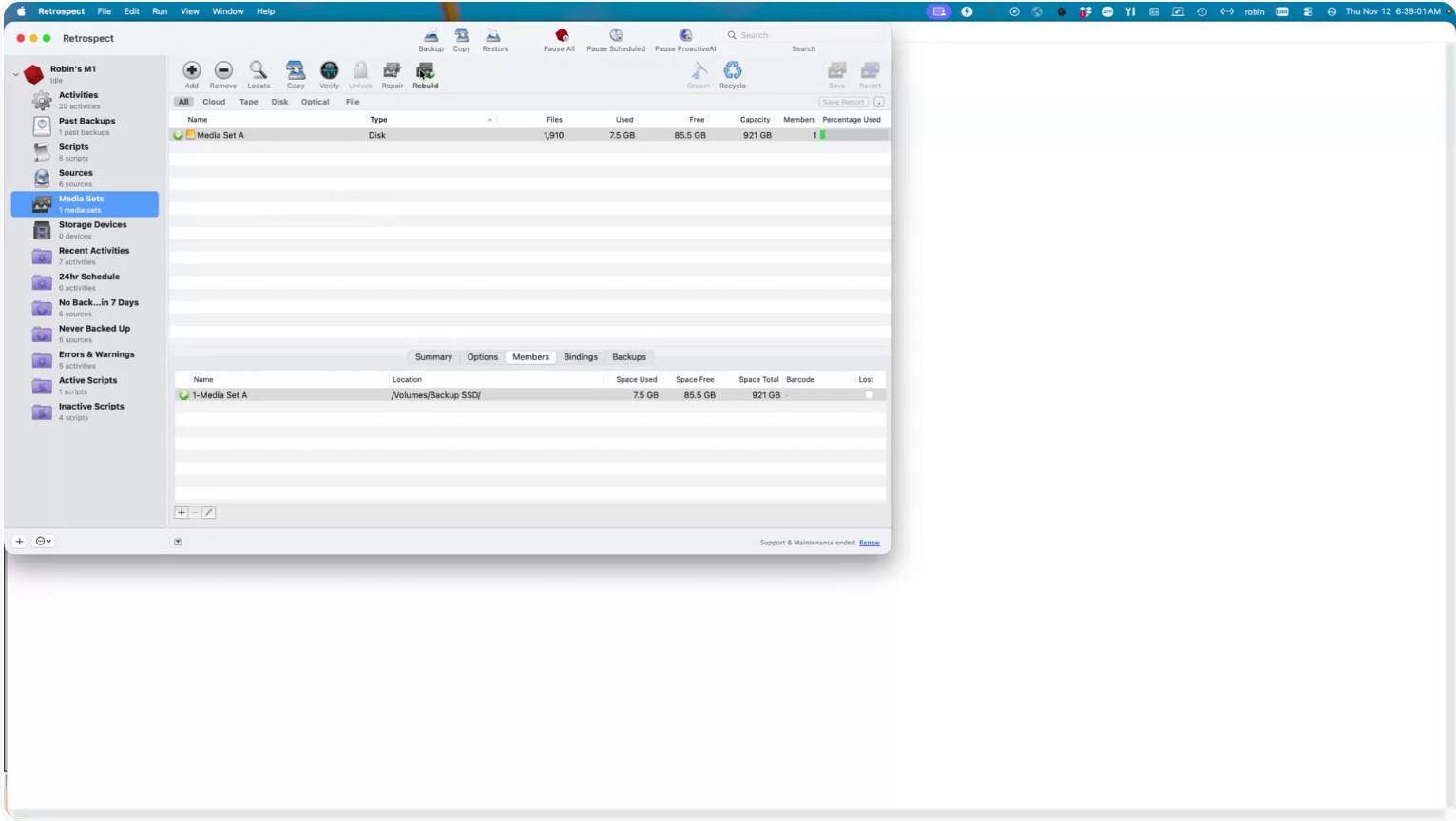
On the left-hand navigation pane, go to Media Sets.
At the top of the Media Sets window, click Rebuild.
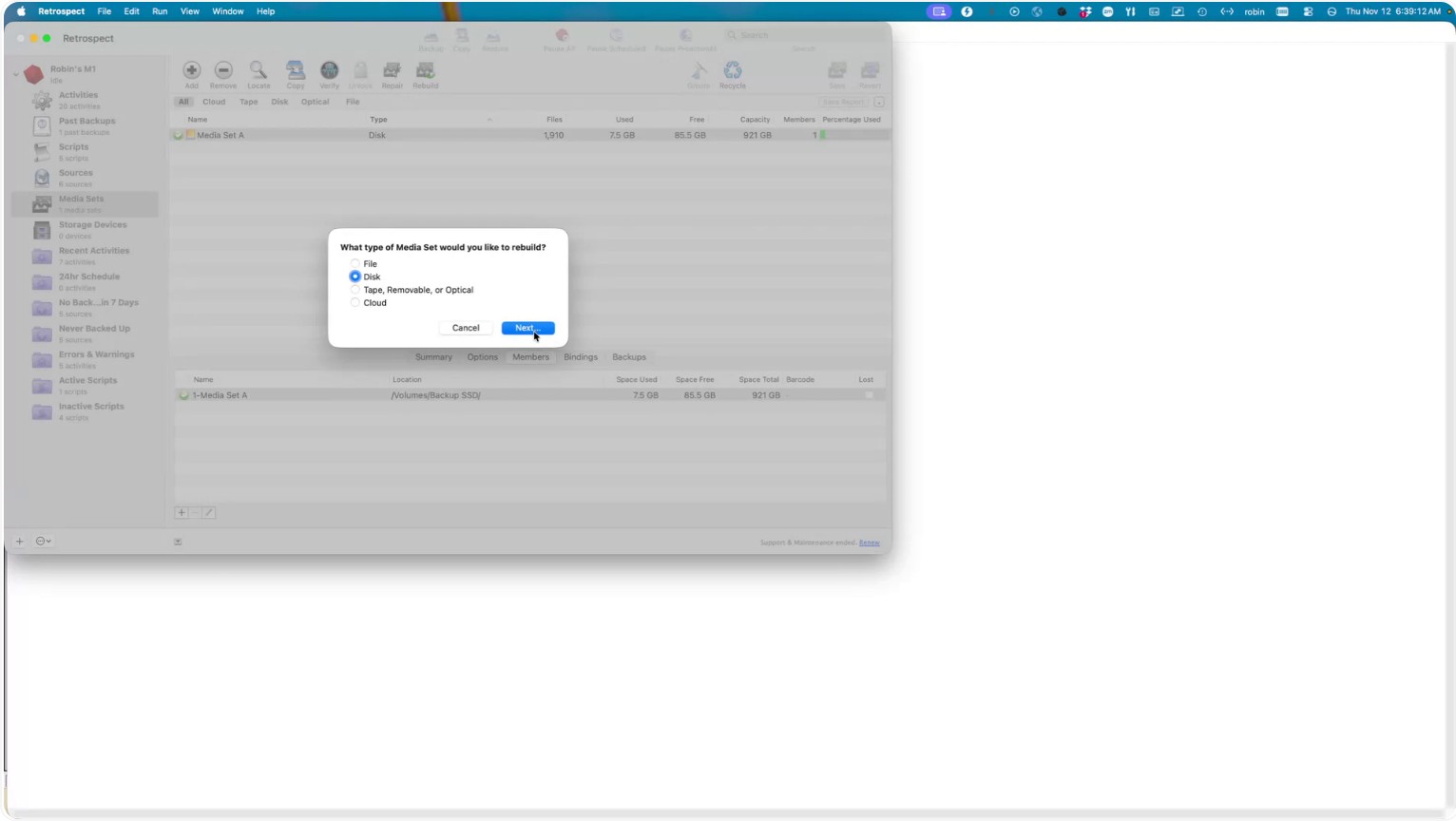
Step 2: Choose Disk as the Media Type
In the rebuild dialog, select Disk as the type of media set you want to rebuild, then click Next.
Step 3: Add the Disk Member Containing Backup Data
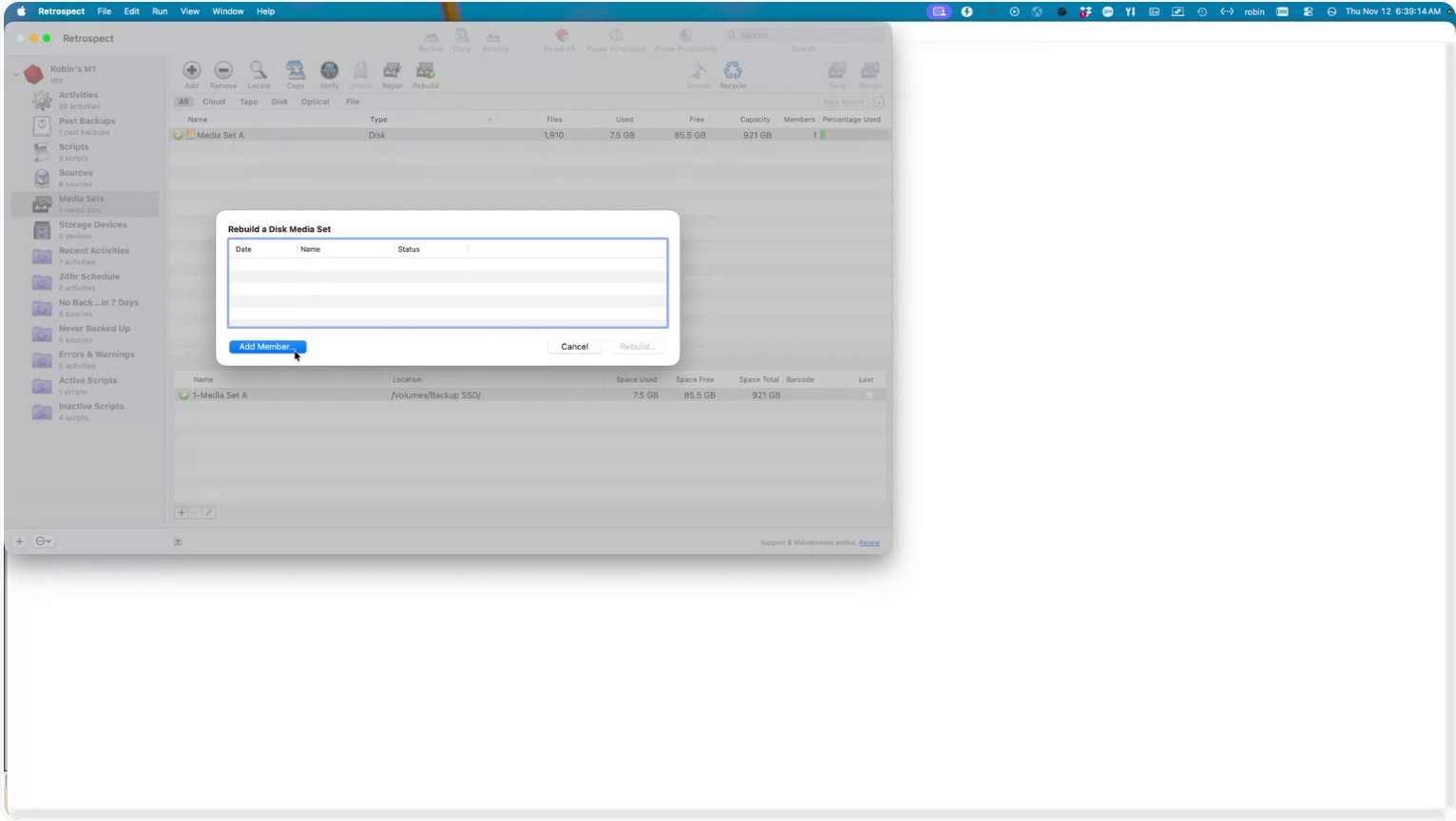
Click Add Member.
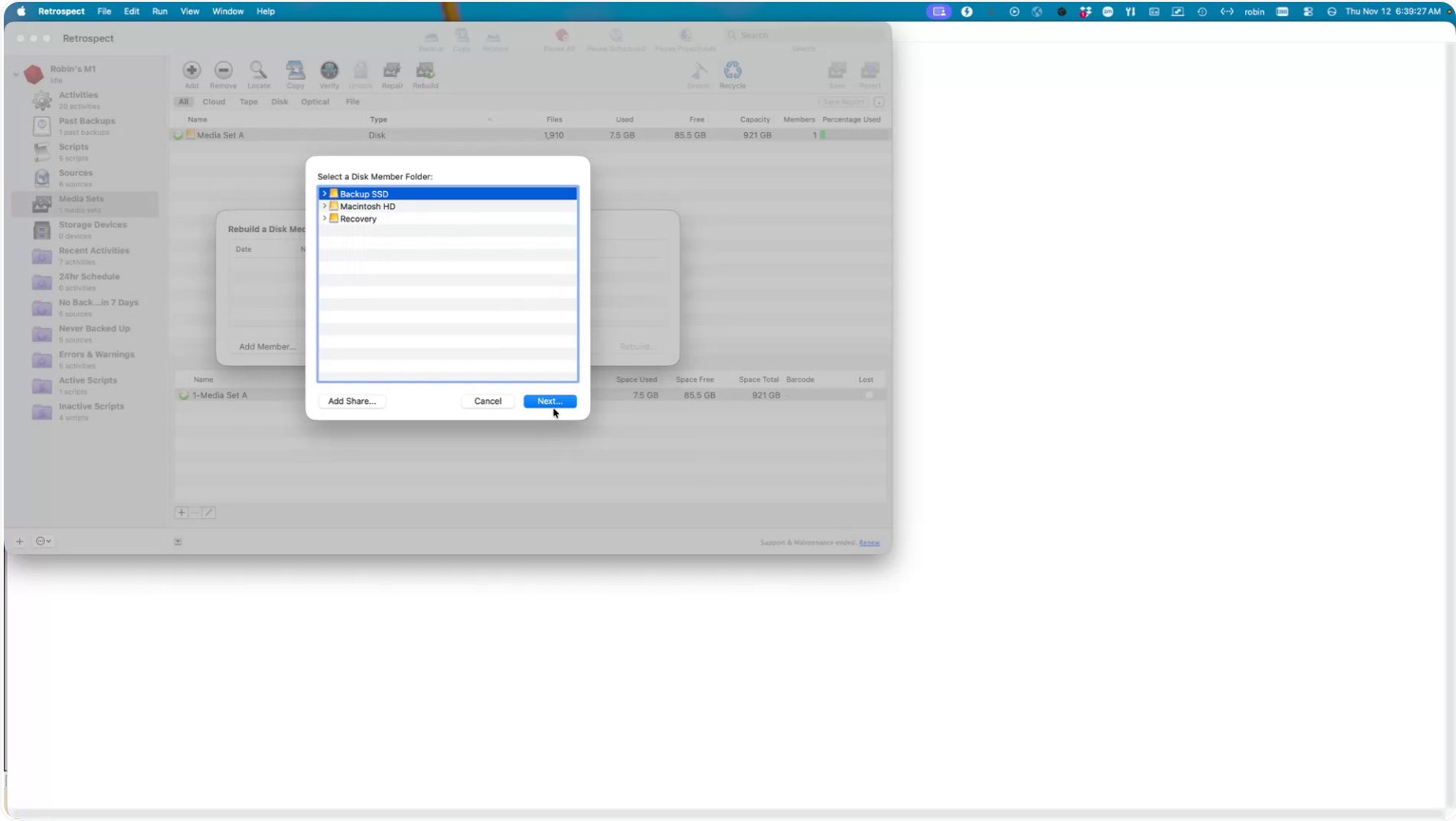
In the browser that opens, select the disk that contains your backup data files. In most cases, you do not need to expand the disk and navigate into folders; simply highlight the root of the disk and click Next.
Step 4: Select the Detected Member and Start the Rebuild
From the list of members that Retrospect finds on that disk, select the appropriate member, then click Next.
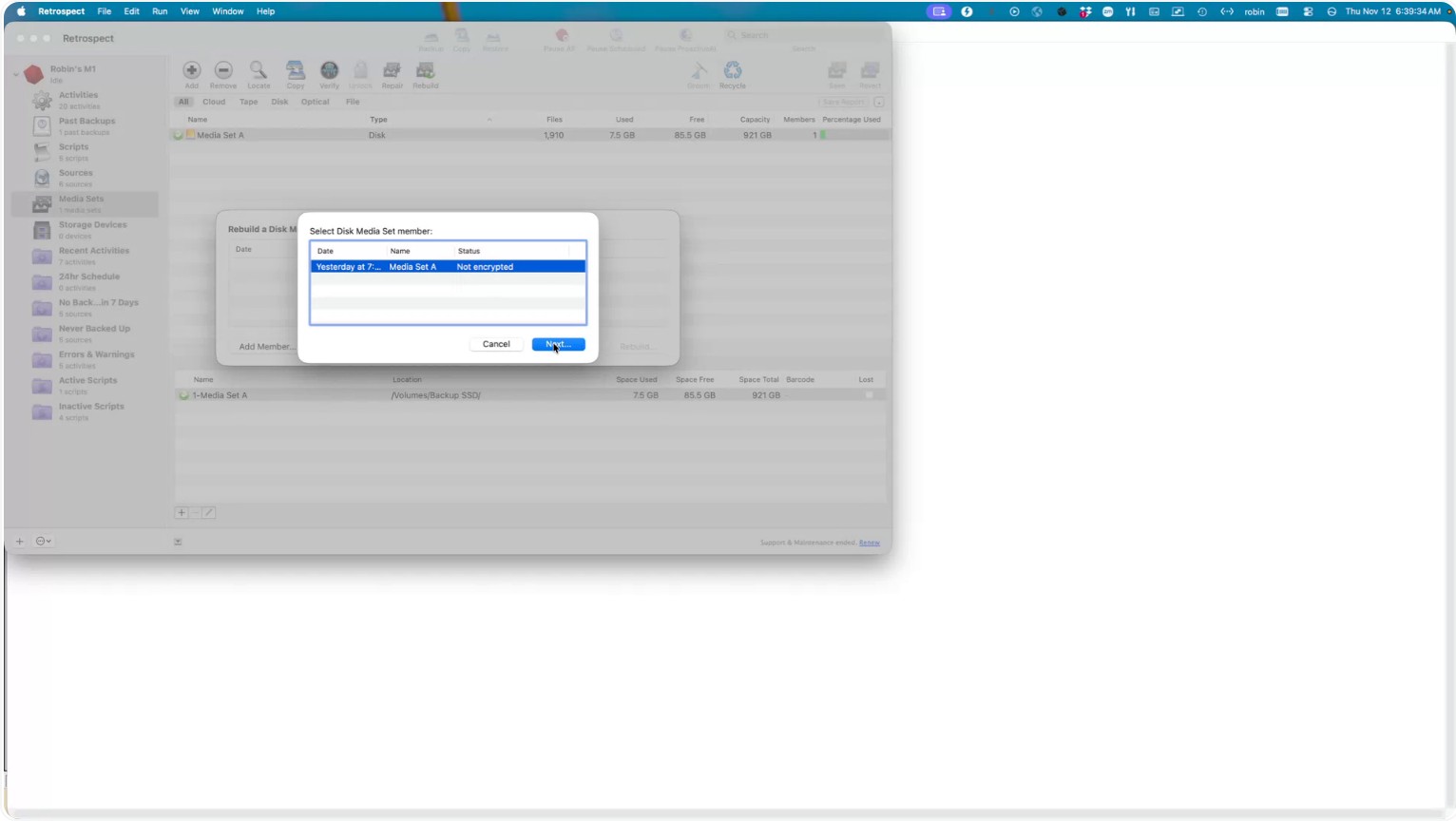
Review the disk Retrospect displays for the rebuild. When you have confirmed it is correct, click Rebuild.
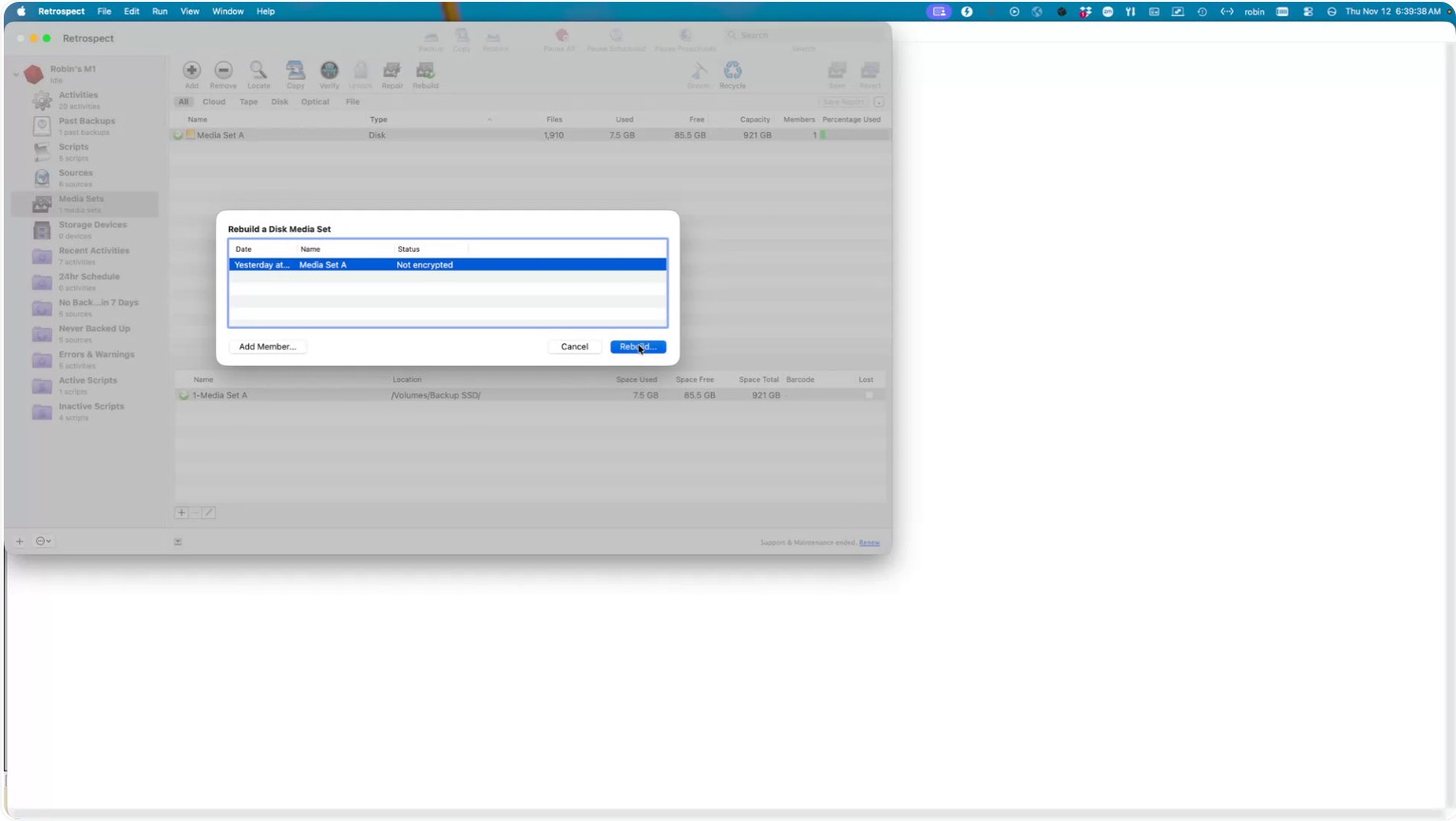
Step 5: Choose the Location for the New Catalog File
When prompted for the location of the new catalog file, accept or confirm the default path: Library → Application
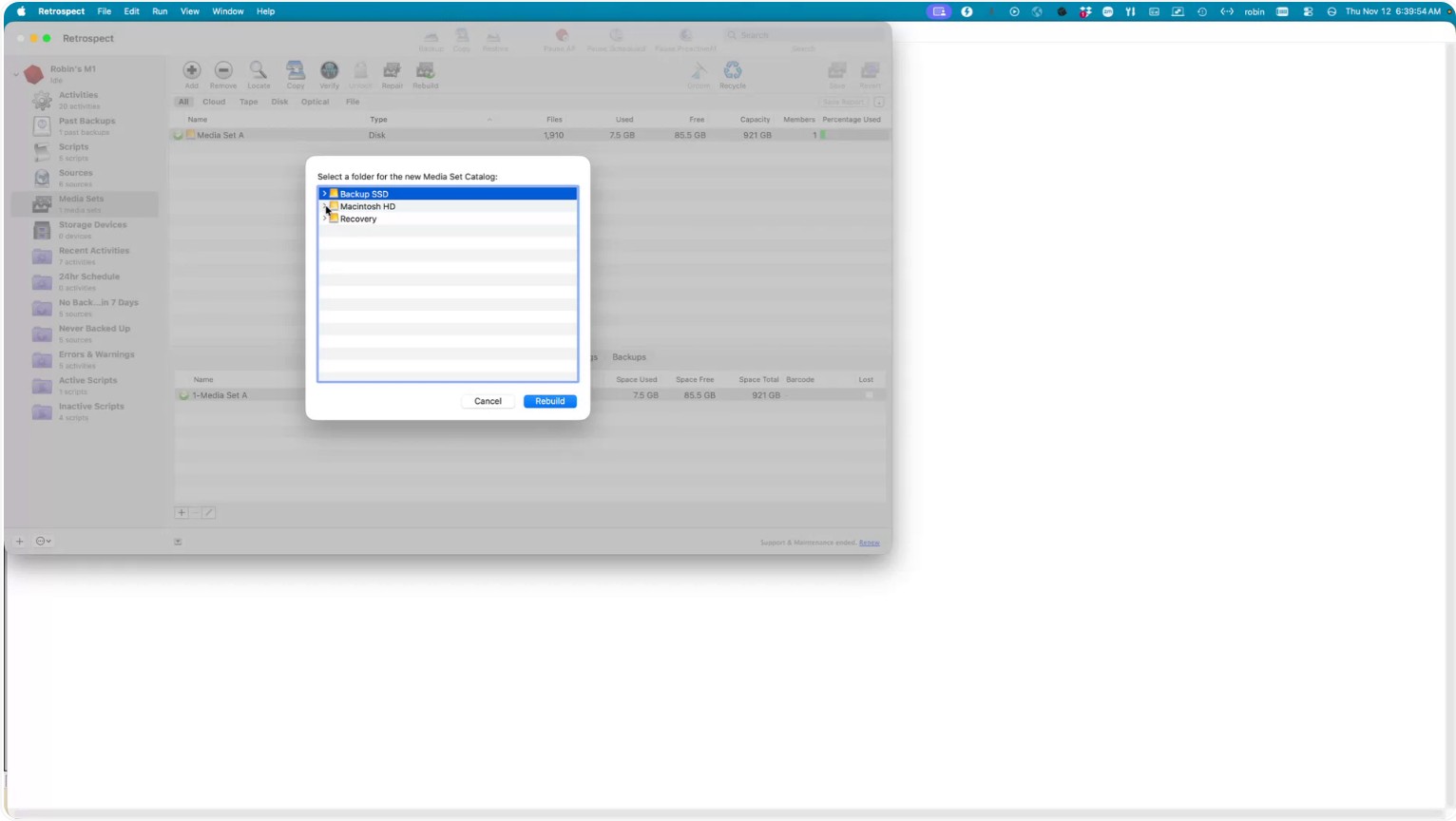
Support → Retrospect
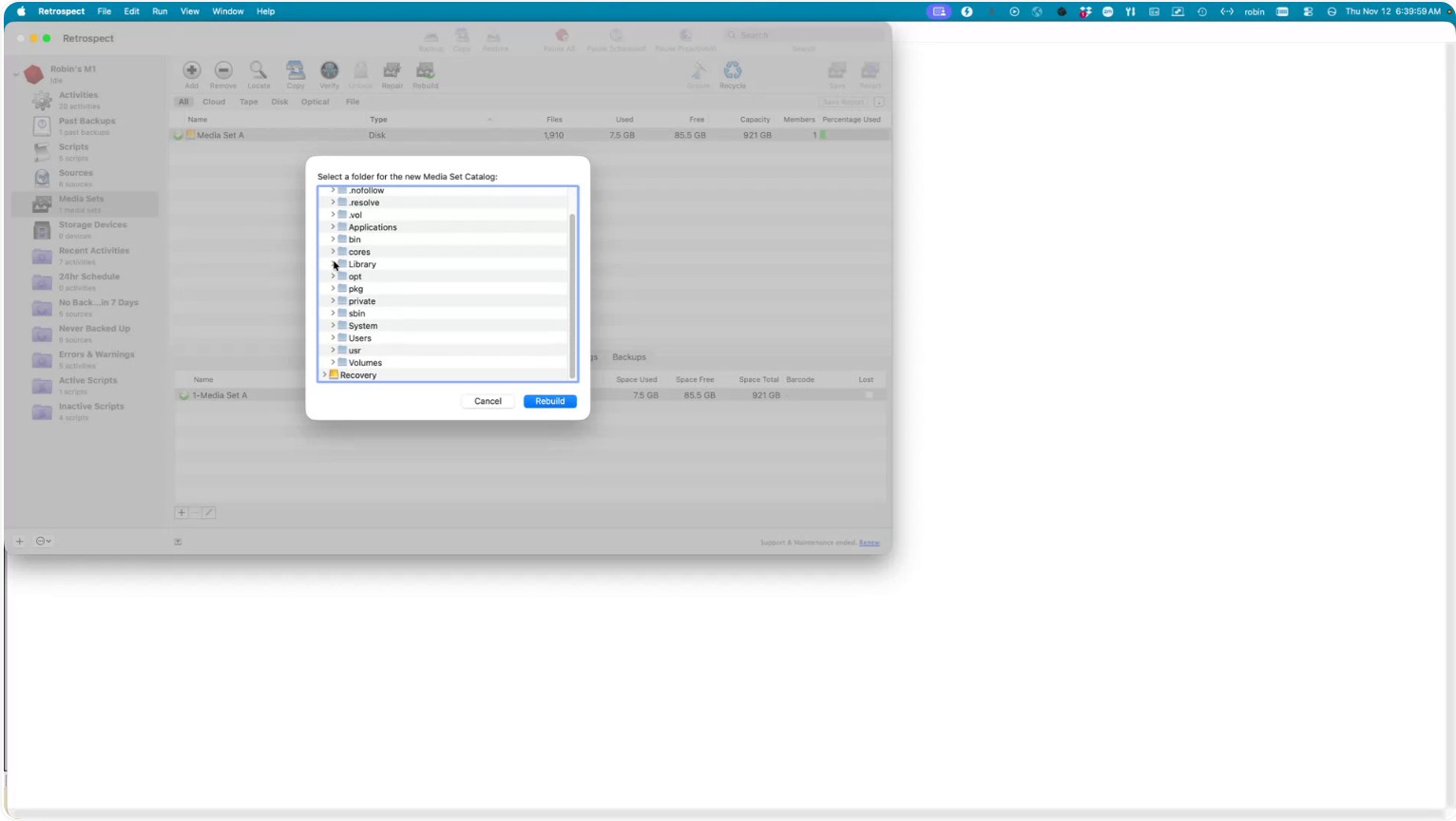
and then Catalogs.
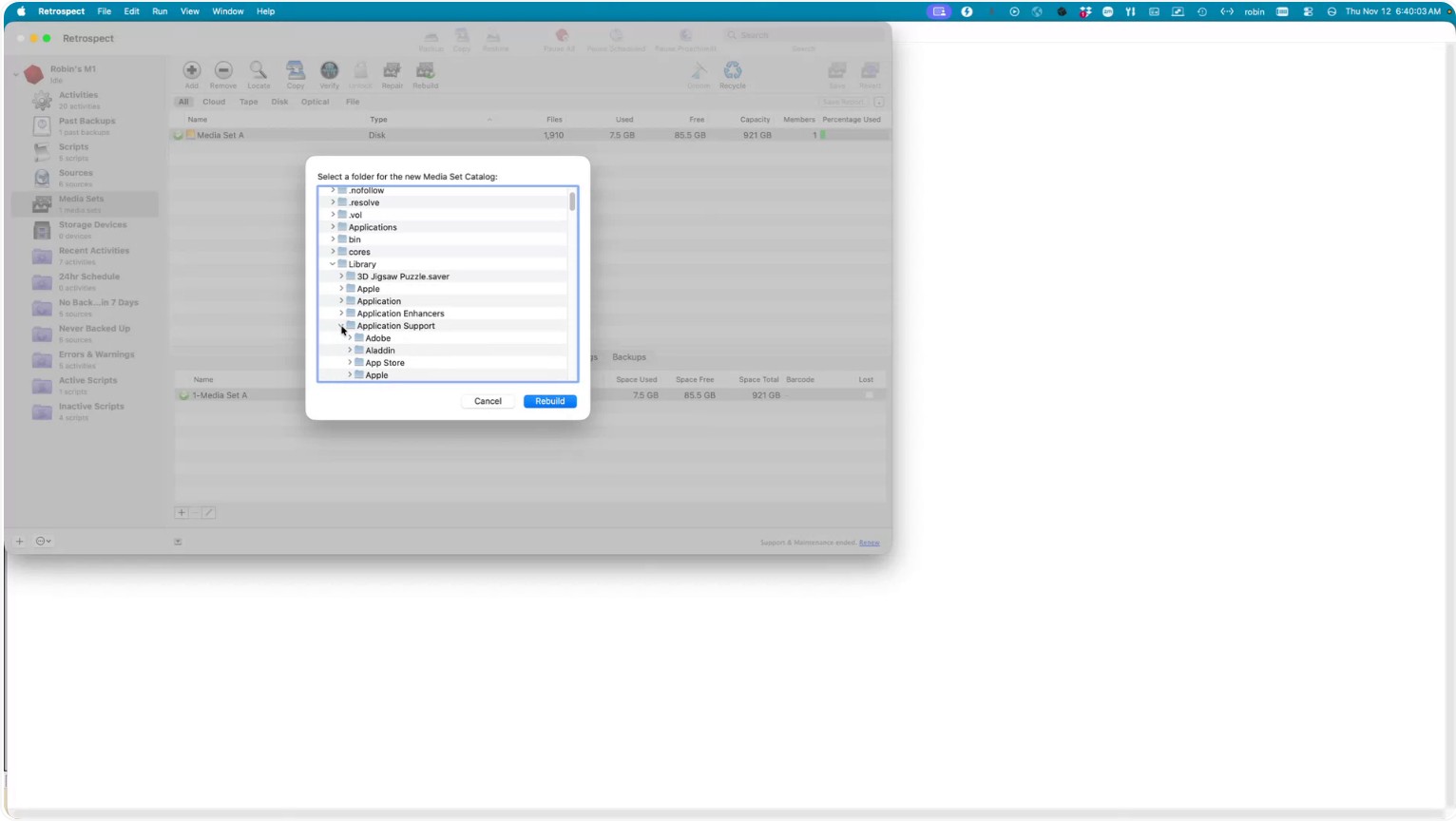
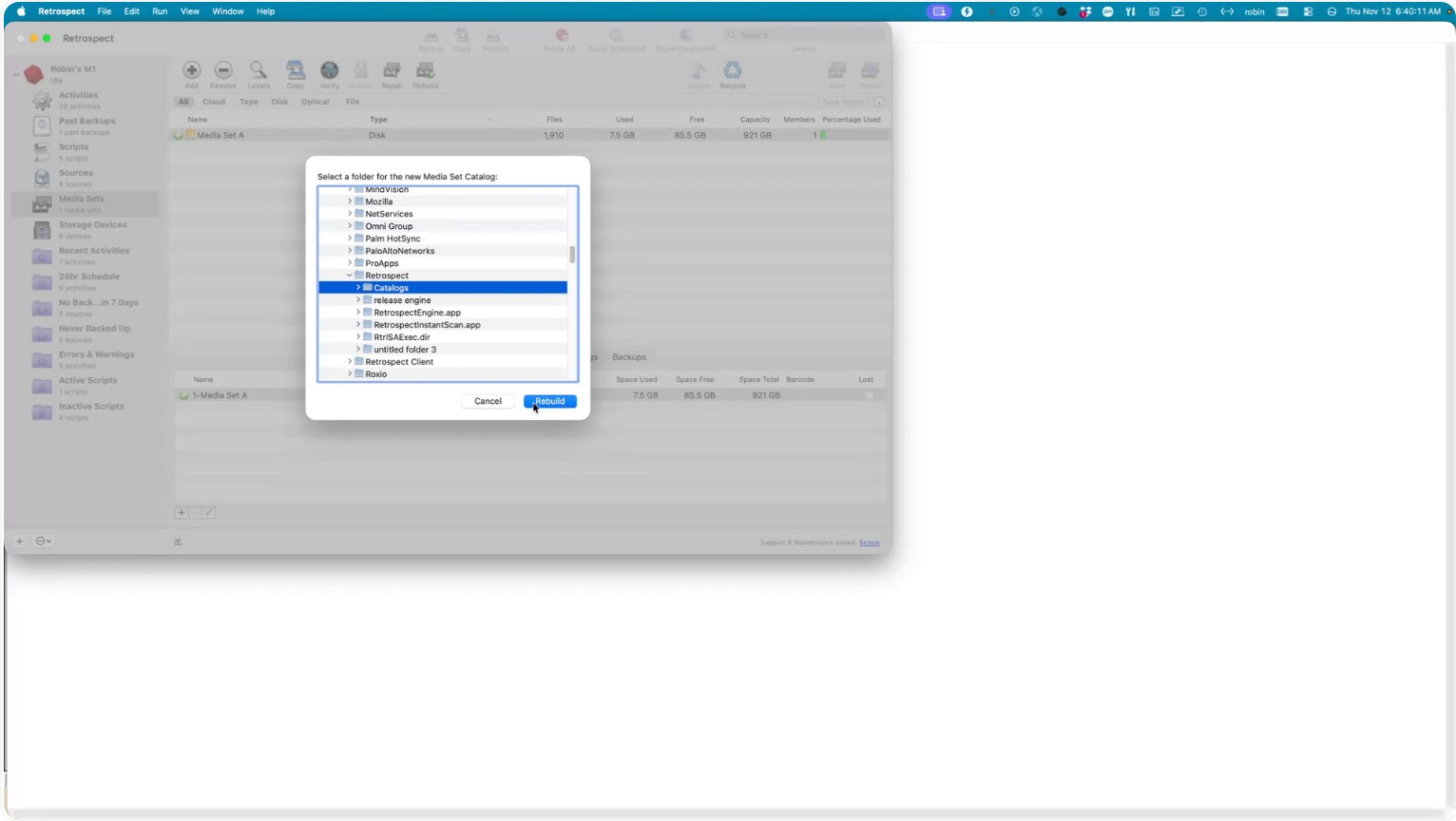
If Retrospect asks whether you want to overwrite an existing catalog file, choose to overwrite it for this operation, then click Rebuild to proceed.
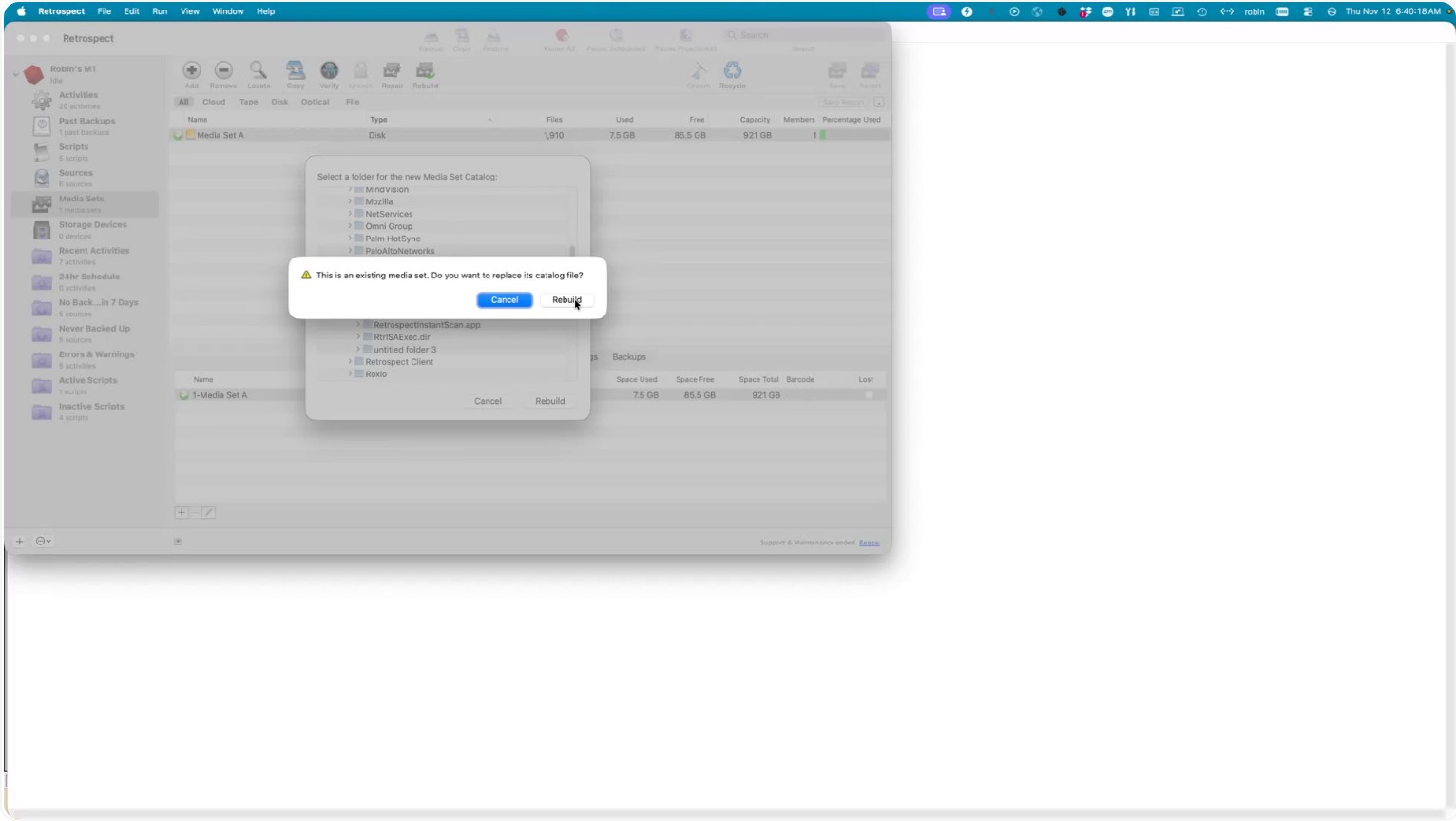
Step 6: Monitor the Catalog Rebuild Progress and Completion
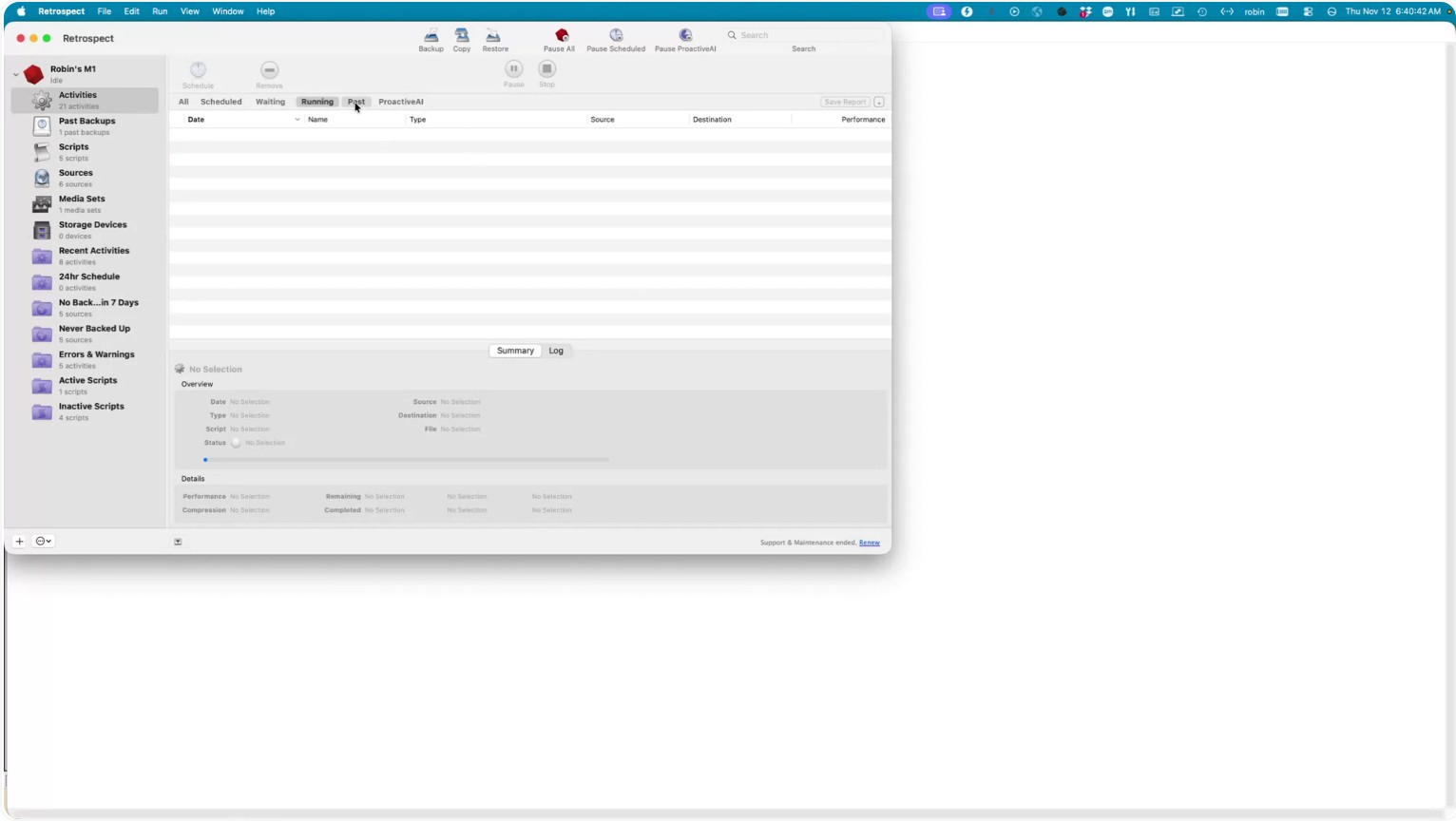
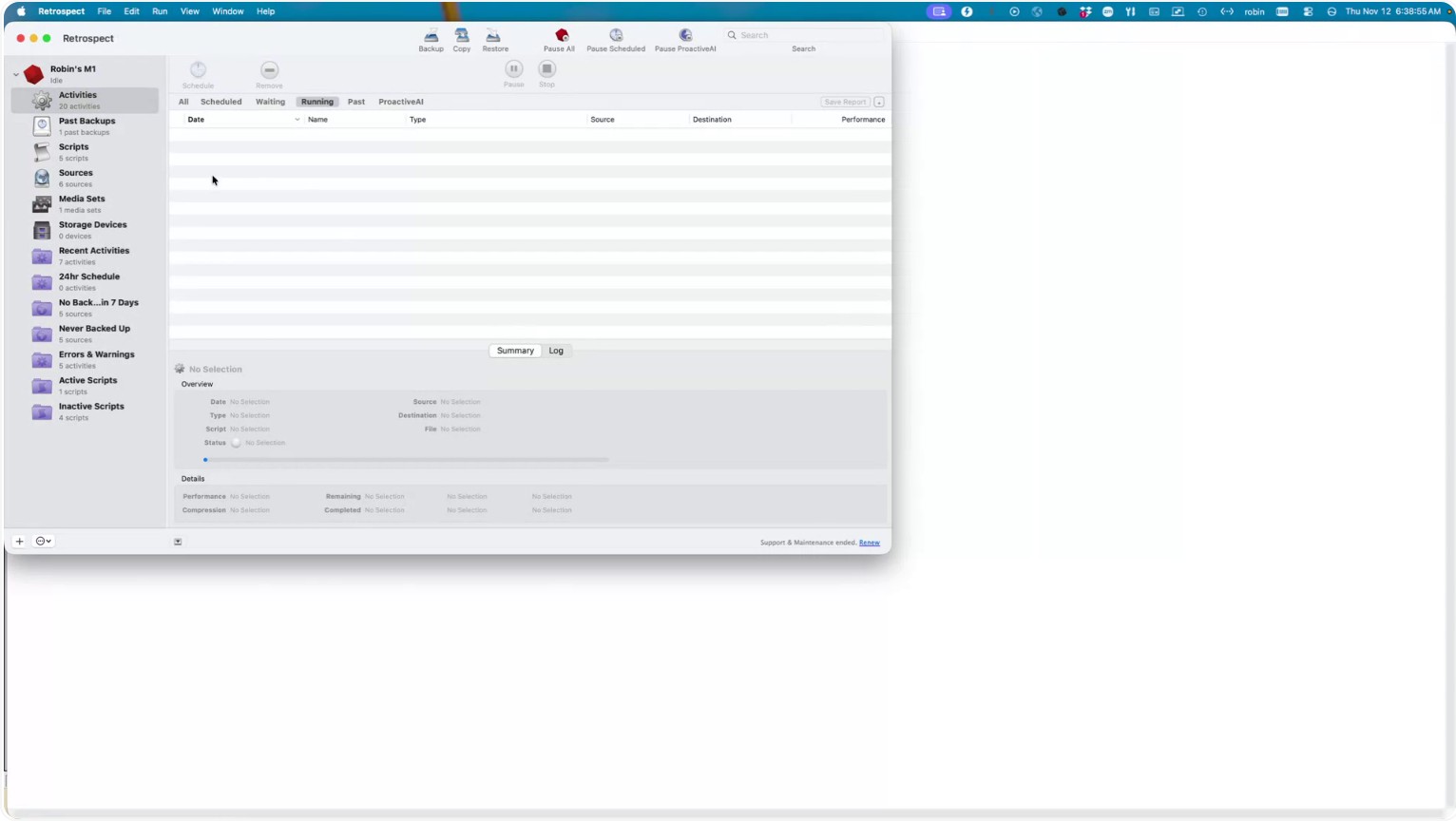
Retrospect will show the catalog rebuild under the Running tab in Activities. The duration depends on the size of your backup; larger backups will take longer to process. By default, Retrospect performs a fast catalog rebuild.
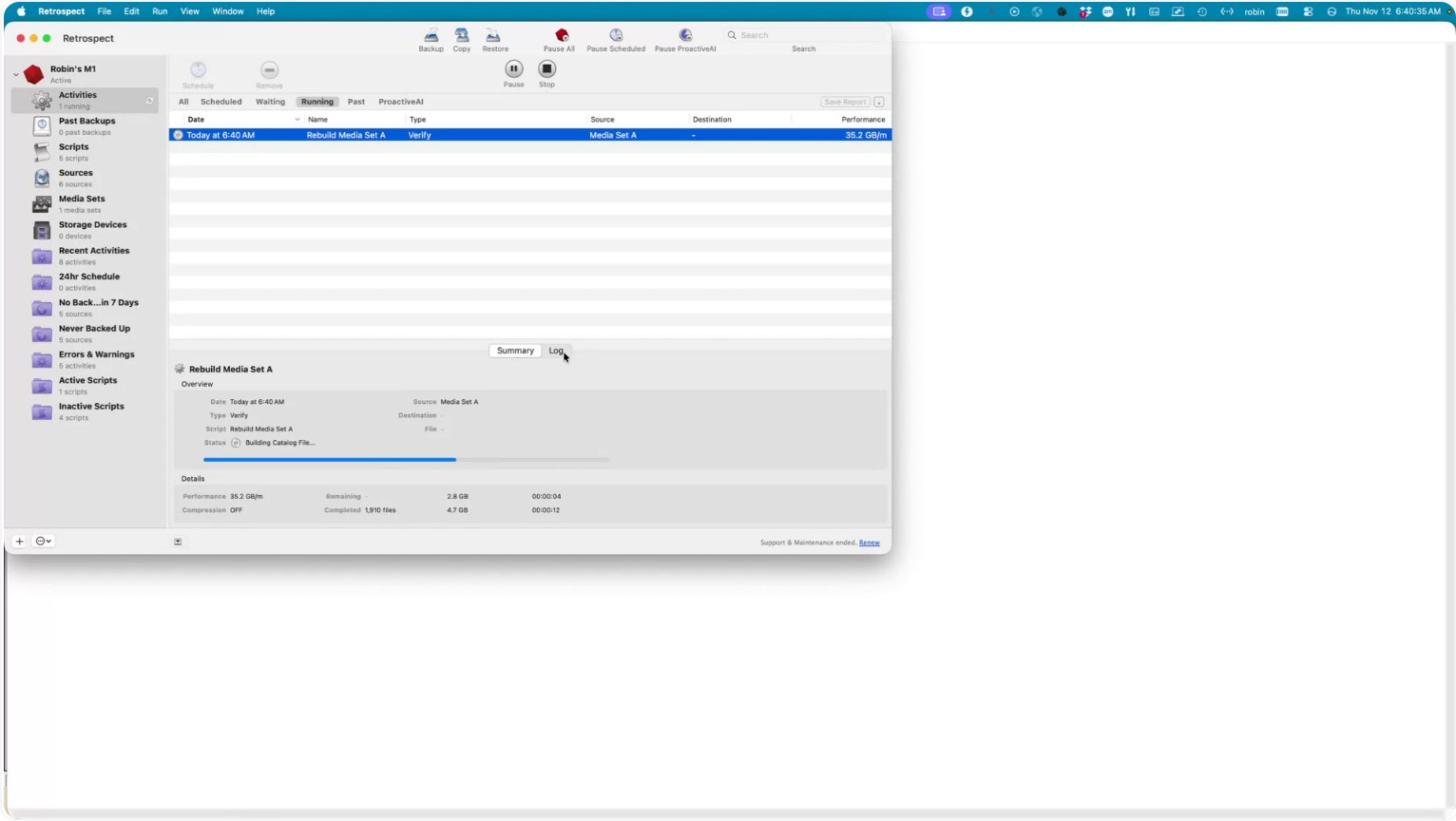
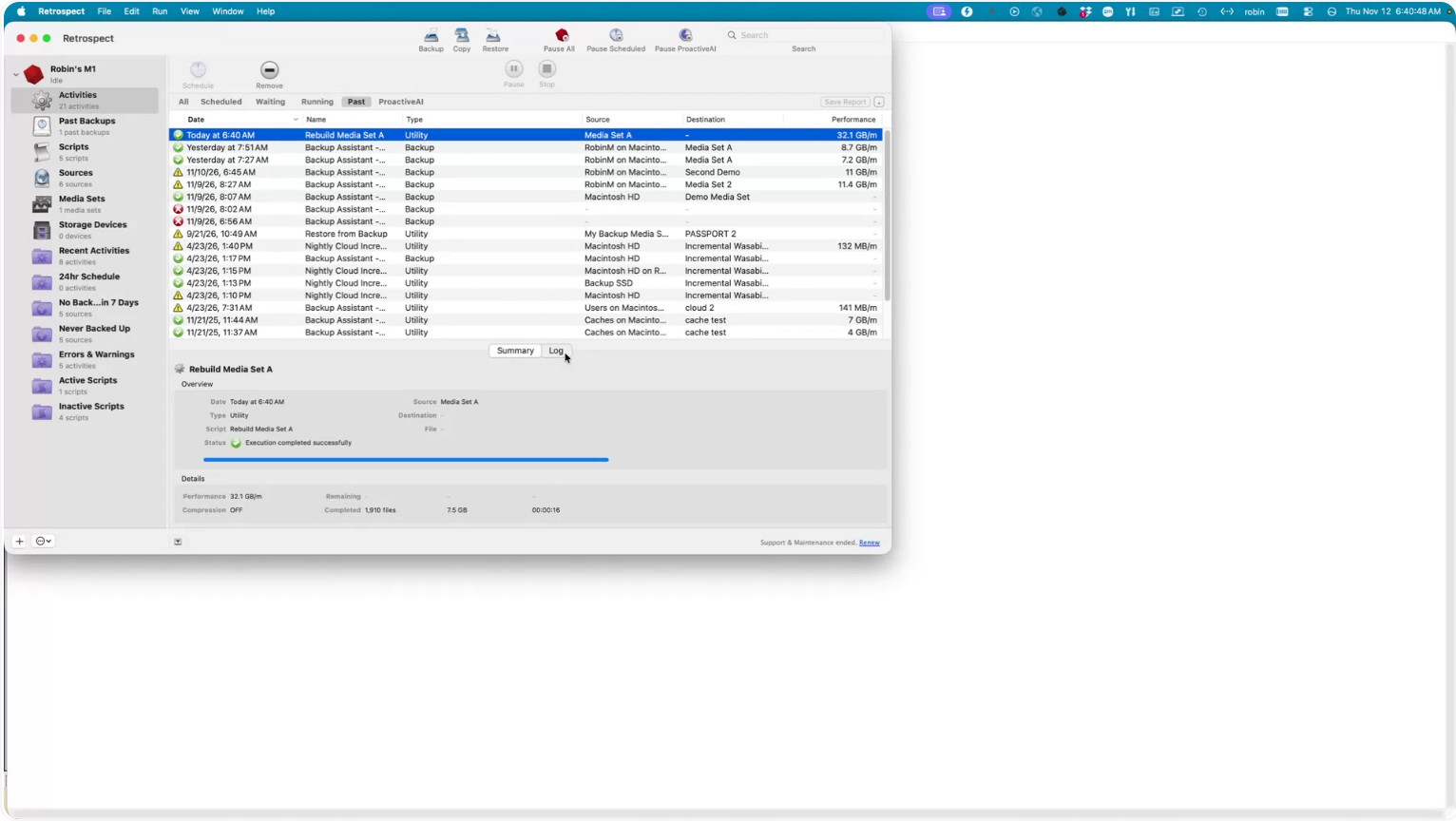
When the rebuild is complete, the job will move to the Past tab, showing the completed catalog rebuild. You can then open the log to review what was rebuilt, confirm that a fast catalog rebuild was used, and see how much data was processed during the operation.